

Status, publishing and notifications
Every post has a status with its own color. You make the change from Draft to Planned, and companycore sets everything after that – and gets in touch when something goes wrong.
Which statuses are there?
You only set Draft and Planned. companycore sets all other states. There is deliberately no “mark as posted” button. The legend Colours in the Calendar shows the colors.
| Status | Color | Meaning |
|---|---|---|
| Draft | Yellow | Saved but not scheduled. Appears only in the list on the left, not in the grid. |
| Approval | Blue | Scheduled, waiting for an admin or the owner. Appears on the Pro plan and above. More in Approvals. |
| Client approval | Pink | Waiting for the client. Max plan only. |
| Planned | Purple | Firmly scheduled. Goes out automatically at the scheduled time. |
| Publishing | Light blue | Running right now. The post is read-only. For TikTok and YouTube, processing can take minutes to hours afterwards. |
| Published | Green | It is out. “Partly published” counts here too. |
| Failed | Red | The scheduled time arrived, but the post didn’t go out. Sits in the list under Planned, with a red number. |
The legend only shows what applies to you: Approval on the Pro plan and above, Client approval only on the Max plan, and Failed only as long as there is a failed post.
What happens at the scheduled time?
companycore publishes each channel separately, at the scheduled time or shortly after. A delay of one to two minutes is normal. While publishing is under way, the post is locked: “This publication is being published right now — give it a moment, then it appears under ‘Published’.”
The calendar refreshes itself while something is being published or is due soon. In the end it reports “… is published.” or “… could not be published — details on the entry.” If the browser tab is in the background, this pauses.
| Result | Status afterwards |
|---|---|
| All channels are published. | Published |
| Some channels are published, others are not. | Published with the heading “Partly published”. The receipt says: “Not every channel accepted the post.” |
| No channel accepted the post. | Failed |
TikTok and YouTube keep processing a video after the upload. Then it says: “Still being processed by … – this can take a few minutes to a few hours.”
When companycore doesn’t publish
- The approval is missing: The notification Approval overdue appears. More in Approvals.
- Your subscription isn’t active at the scheduled time: It says “Dein Plan war zum Termin nicht aktiv – Beitrag neu einplanen” (German system text, meaning: “Your plan wasn’t active at the scheduled time – reschedule the post”).
- The connection is disconnected: The post fails. Reconnect the account and reschedule the post. Only dates in the future go out automatically after you reconnect. More in Connection expired or disconnected.
- The scheduled time is too far in the past: It says “Termin liegt mehr als 24 Stunden zurück – nicht mehr automatisch veröffentlicht, bitte neu einplanen” (German system text, meaning: “Date is more than 24 hours in the past – no longer published automatically, please reschedule”).
What does companycore check before the date?
About a day before the scheduled time and once more shortly before, companycore checks the post: plan, approval, connection, target page, and whether the media are still in Files. If the check finds something, the notification Problem before the date appears: “… may fail at its date — please check”, with one line per problem. It comes once per post and date.
Typical findings are an expired connection, missing media, an open approval or an inactive plan. Until then, you can fix these: renew the connection under Backstage › Connections, replace deleted media, get the approval or reactivate the plan.
What happens when there’s an error?
- Temporary errors (network, timeout, a disruption at the platform) are retried automatically by companycore up to five times. The editor then says, for example, “… – neuer Versuch in 4 Min (2/5)” (German system text, meaning “… – new attempt in 4 min (2/5)”). After the fifth attempt, it says “… – nach 5 Versuchen aufgegeben” (meaning “… – gave up after 5 attempts”), and the post is Failed.
- Daily limits of the platform: companycore waits until the next possible time without using up an attempt. The editor says “… – neuer Versuch am …” (German system text, meaning “… – new attempt on …”) with date and time.
- Final errors (text, file or account must be changed): The post is Failed right away, with one sentence about what to do.
- Connection errors: If the access has expired or been withdrawn, it says “please reconnect … under Connections”. More in Connection expired or disconnected.
- Unclear outcome: If the platform didn’t answer at the last step, the post may already be online. companycore then blocks rescheduling until you have checked on the platform. The dialog Status unclear offers the button “Checked — not live, reschedule” for this.
- Error code: A short code sits on the red banner. Quote it when you get in touch: jan@companycore.ai.
How to reschedule a failed post
- Open the post. A red banner gives the reason: “The last attempt failed: …”
- Fix the cause. Shorten the text, replace the file or reconnect the account, depending on what the sentence asks for.
- Click Reschedule. The date jumps to now plus about 15 minutes, rounded up to the half hour. companycore never resends on its own.
- Click Schedule publication. Only that makes the post Planned again.
Instead of Reschedule, the context menu also offers Reset to draft. If the error text is missing, it says: “No error text from the service — please reschedule; the next attempt will report back.” My post wasn’t published explains this in detail.
What does the receipt of a published post show?
- Header: “Published on …” with the date, and “Partly published” in case of a partial success.
- Per channel: time, account, result and the link View to the post on the platform.
- Text and media: “Published text” with Copy text and “Published media”. Collabs are under “Together with”.
- Partial success: Retry failed channels. Channels that are already published stay unchanged and are locked.
- Editing or deleting afterwards isn’t possible in companycore: “This post is out. Here is what went live. Nothing can be changed anymore.” Changing and deleting only work directly on the platform.
Where do I see notifications in the app?
On Home, the Notifications card sits on the right, always expanded. On all other pages, a drawer sits at the right edge of the screen. When closed, only a small handle with a counter sticks out. A click slides it open, and a click outside or Esc closes it. On a phone, the handle is a floating pill at the bottom right, and the card opens from the bottom. There is no bell.
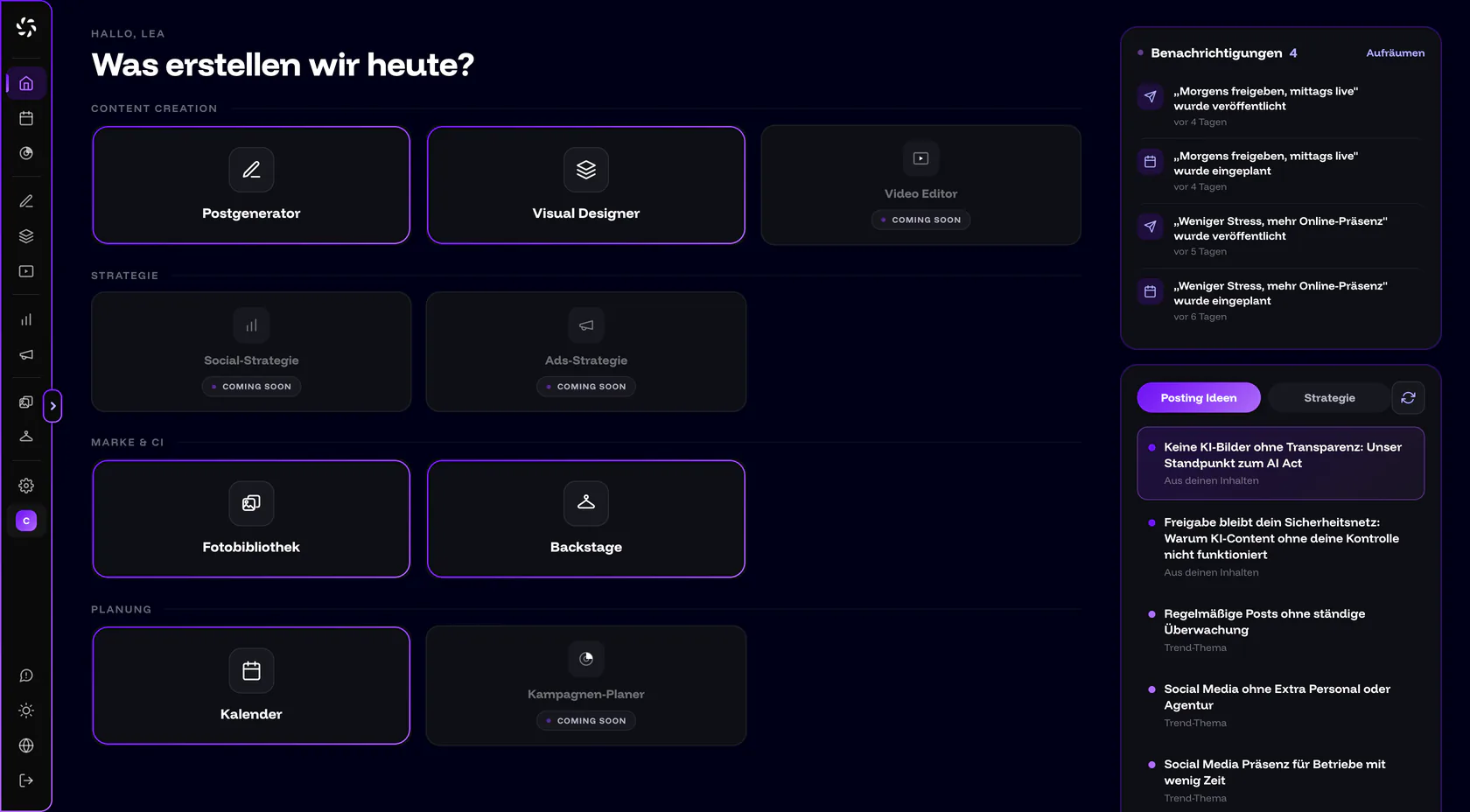
- A click on a message jumps to the right place, mostly the Calendar. For connection problems, it goes to Backstage › Connections.
- Dismiss (the × on the message) removes one message, Clear all removes all of them. This only applies to you. Colleagues keep seeing their messages.
- Messages expire by themselves, usually after 7 days. Problem before the date, Connection expires soon and Approval overdue stay for 14 days. Publishing failed, Partly published and Connection lost stay for 30 days.
- Messages belong to the brand. With several brands, you only see those of the active brand.
How do I set up notifications and emails?
- Open Settings › Notifications. At the top it says which address the emails go to: the address of your account.
- Under My notifications, choose per event. Each row has two switches, In the app and Email. Every change is saved immediately (“Saved ✓”).
- As owner or admin, set Who gets notified. For each event, you choose the roles Owner, Admin, Editor, Viewer and, on the Max plan, Client, plus also the creator. Approval requests always go to the approvers of the respective stage.
- Click Send me a test email. That shows you how notifications arrive for you.
Which events reach you at all is set by your organization’s team rule. Rows that don’t apply to you under that rule carry the note “Not routed to you by your team rule”. The language of the emails follows Settings › Account › Interface language. Under every email, “Manage notifications” leads straight to these settings.
| Event | When it is sent | Default recipients | Default channels |
|---|---|---|---|
| Publishing failed | A post could not be published for good, including when the platform gave no clear answer. | Owner, admin, editor and creator | App and email |
| Partly published | A post appeared on some channels but not on others. | Owner, admin, editor and creator | App and email |
| Published | A post appeared on all channels as planned. | Creator only | App only |
| Problem before the date | The pre-check finds something that would prevent publishing. | Owner, admin, editor and creator | App and email |
| Connection expires soon | An account needs renewing soon or automatic renewal isn’t working right now. The message comes 7, 3 and 1 day before expiry. | Owner, admin | App and email |
| Connection lost | An account has expired, was revoked or could no longer be renewed. The message names the affected scheduled posts. | Owner, admin | App and email |
| Approval requested | A post is waiting for your approval. | Fixed: the approvers of the stage | App and email |
| Approval decided | A post was approved, rejected or is now waiting for the client. | Creator | App and email |
| Approval overdue | The date has passed, approval is still missing, and the post was not published. | Fixed: the approvers and the creator | App and email |
| Scheduled | Someone firmly scheduled a post. | Owner, admin | App only |
Keep error emails on
Leave Publishing failed, Problem before the date and Connection lost set to Email. Otherwise, if you don’t have the app open, you only notice later that a post didn’t go out.
Frequently asked questions
What does “Partly published” mean?
The post appeared on some of the channels but not on others. You find it in the calendar under Published. Fix the cause and choose Retry failed channels: channels that are already published stay unchanged.
Why was my post published one to two minutes after the scheduled time?
That’s normal. companycore publishes at the scheduled time or shortly after. For TikTok and YouTube, processing time comes on top.
Can I delete a published post in companycore?
No. Published posts can’t be changed or deleted in companycore. That only works directly on the platform.
Why am I not getting emails?
Check three things: the Email switch for the event under Settings › Notifications, the note “Not routed to you by your team rule” on the row, and your spam folder. With Send me a test email, you can see whether emails arrive.
Why don’t I see messages from another brand?
Messages belong to the active brand. Switch brands to see the messages of the other one.
Was this article helpful?