

core memory: save your preferences for good
What you tell core once, you shouldn’t have to repeat every time. The core memory holds the standing rules for your brand. You can view, change and delete them at any time.
What is core memory?
You find the core memory under Backstage › core memory. The app describes it as what core knows about your brand: your instructions and, depending on the learning mode, its own notes from working with companycore. You view, change and delete your entries there.
The difference from the Text settings: there you set defaults such as tone, goal and length. In the memory, individual rules are stored as sentences, for example “no em dashes”. The memory belongs to the brand you have currently selected.
How do you add entries?
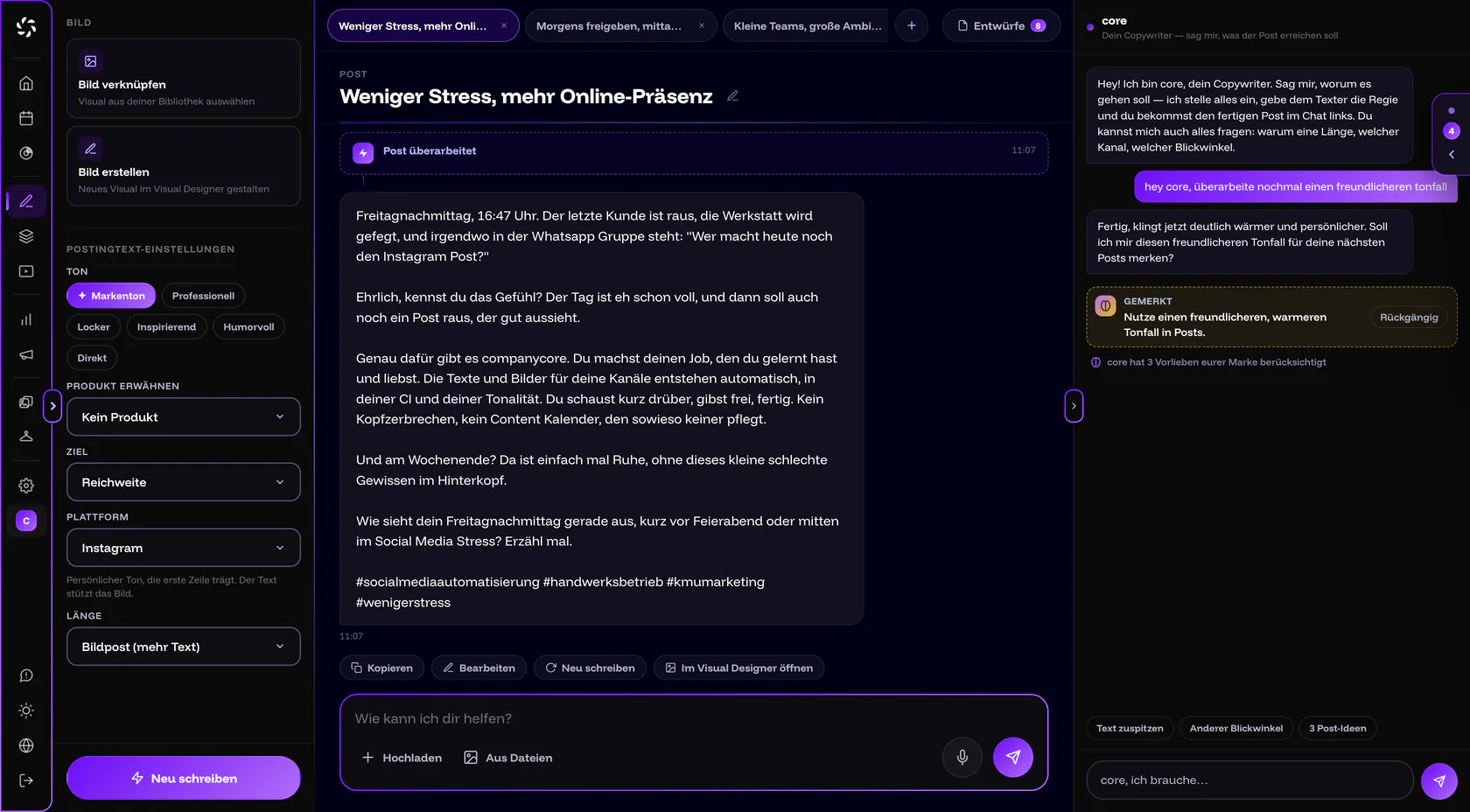
- Say in the chat what should apply. In the core chat of the Post Generator or the Visual Designer, write something like “remember: no em dashes”. core confirms with the Remembered chip.
- Or enter it directly in the Backstage. Open Backstage › core memory, type the sentence into the core, remember … field and press Enter.
- Answer the follow-up question. If core is unsure whether something should apply permanently, it asks: “Should I remember this?” Yes, remember saves the entry, No doesn’t.
- Take it back if needed. Right after remembering, the chat shows Undo.
An entry is a short sentence with one rule. Examples from the app: “remember: no em dashes”, “never stock-photo smiles in our images” and “we address customers formally, always”. A rule about length takes priority over the length you set in the Post Generator. The table shows what makes a good entry.
| Too vague | Better |
|---|---|
| “Don’t be so salesy.” | “No superlatives like ‘best’ or ‘unique’.” |
| “Address our customers properly.” | “We address customers formally, always.” |
| “Use nicer images.” | “Never stock-photo smiles in our images.” |
| “Keep it short.” | “Facebook posts: three paragraphs at most.” |
| “We address customers formally, use no emojis and write short.” | Three entries: “we address customers formally, always”, “no emojis” and “sentences of 15 words at most”. One rule per entry. |
How are entries sorted and how do you manage them?
The memory has four areas:
- Everywhere: applies everywhere.
- Texts & posts: applies in the Post Generator, for calendar texts and for text layers.
- Images: applies in the Visual Designer.
- Videos: prepared, no function yet. The app says: “video studio — prepared, coming soon”.
If an entry ends up in the wrong area, move it with Move to. More options on every entry:
- Edit changes the sentence.
- Forget removes it from the memory. It lands in the Forgotten & consolidated archive, from where you bring it back with Restore.
- The origin is shown on the entry: Post Generator, Visual Designer, added here or consolidated by core.
- How often an entry has been confirmed is shown on it, for example “confirmed 3×”.
- When there are many entries, core consolidates them. They then also sit in the Forgotten & consolidated archive.
How much does core learn on its own?
Under How core works for you you set the learning mode. It determines how many notes of its own core makes from your work, on top of your instructions. The options are:
- Learn actively: core takes notes on its own.
- Ask first: core asks before it remembers anything. This is the default.
- Only when told: core remembers what you explicitly tell it.
- Off: core learns nothing new.
There are also five switches, all on by default: Know recent posts, Ask about series on new posts, Nightly notes, Use the CI gradient as a backdrop and core may research the web.
With web research, core searches the web for current figures, trends and dates and names its sources in the chat. Findings only go into the memory after you say yes. Every web search counts toward the Web searches (core) quota. When it is used up, core stops researching, but the chat stays usable.
The app shows the nightly notes in the What core has been thinking about section. Next to it is the Think now button.
Strategy, pillars and reference images
In the Strategy & content pillars section you maintain up to 8 content pillars, the fixed topic areas of your brand. Adopt analysis pillars pulls the pillars in from the CI analysis. They already affect texts today.
The strategy module isn’t here yet
The strategy module has been announced but isn’t available yet. The app says: “The strategy module is next up — it’s already prepared here.”
Under Reference images you find images that were saved as a reference in the Visual Designer. For each one you set when it is used: Always or On request.
Who can change the memory?
Owners and admins can change it. Editors can only do so if the owner gives them the permission under Settings › Permissions; the switch is called Edit brand & CI there. Viewers can only read. The memory then says: “You can read here but not change anything — that needs the ‘edit brand’ permission.”
Frequently asked questions
Does core create entries without me noticing?
Depending on the learning mode, core takes its own notes from your work. Where an entry comes from is shown on it. Facts from web research are only remembered after you say yes.
I deleted an entry. Is it gone?
No. With Forget it moves to the Forgotten & consolidated archive. You can bring it back from there with Restore.
Does the memory apply to all my brands?
No. Like everything in the Backstage, it belongs to the brand you have currently selected.
What about the “Videos” area?
It’s prepared but has no function yet. You can upload and schedule videos today, but not edit them. Details in Files and videos.
Was this article helpful?