

Run the CI analysis and check the result
The CI analysis builds your brand identity from your sources: colors, fonts, tone of voice and image style. Only the website is required, but every additional source improves the result.
Time needed: about 10 minutes. You need: the website in Backstage › Company and the material from Step 4.
What does the CI analysis do?
CI stands for corporate identity, your brand look. The analysis runs once across all sources: it takes colors from the logo, facts from the website and documents, and the image style from the reference images. While it runs, a window titled “Analysing your brand…” shows changing lines, for example “Reading colours from the website…”, “Detecting fonts…” and “Deriving tone & language…”.
What do you need before you start?
- An entered website. If it’s missing, the app says “Before the brand analysis can run, you still need: website. Company material (PDF/text) and reference images are optional.”
- An active plan or the trial. Without either, the buttons are locked.
- The right role. Owners and admins can start it, editors only with the Edit brand & CI permission. Otherwise it says “View only: brand CI can only be edited by the owner in this organisation.”
- A free quota. Every analysis counts against the Brand analyses quota. During the trial, you get one.
How do you start the analysis?
- Open the CI Overview. Go to Backstage › CI Overview.
- Scroll to the last step. It’s called “All set? Start the analysis”. The chips Website, Logo, Company material and Reference images (with a count) show what goes into the run.
- Click Generate CI now. The “Analysing your brand…” window opens.
- Wait for the result. On success, the app says “CI updated ✓” and shows the notice “Your CI is ready — take a moment to review it”. Got it closes it.
Alternatively, you can start from the “Brand setup” card: Start analysis opens the window “This goes into your analysis”. With Complete material first you go back and add sources, and with Analyse now the run starts.
How do you check and correct the result?
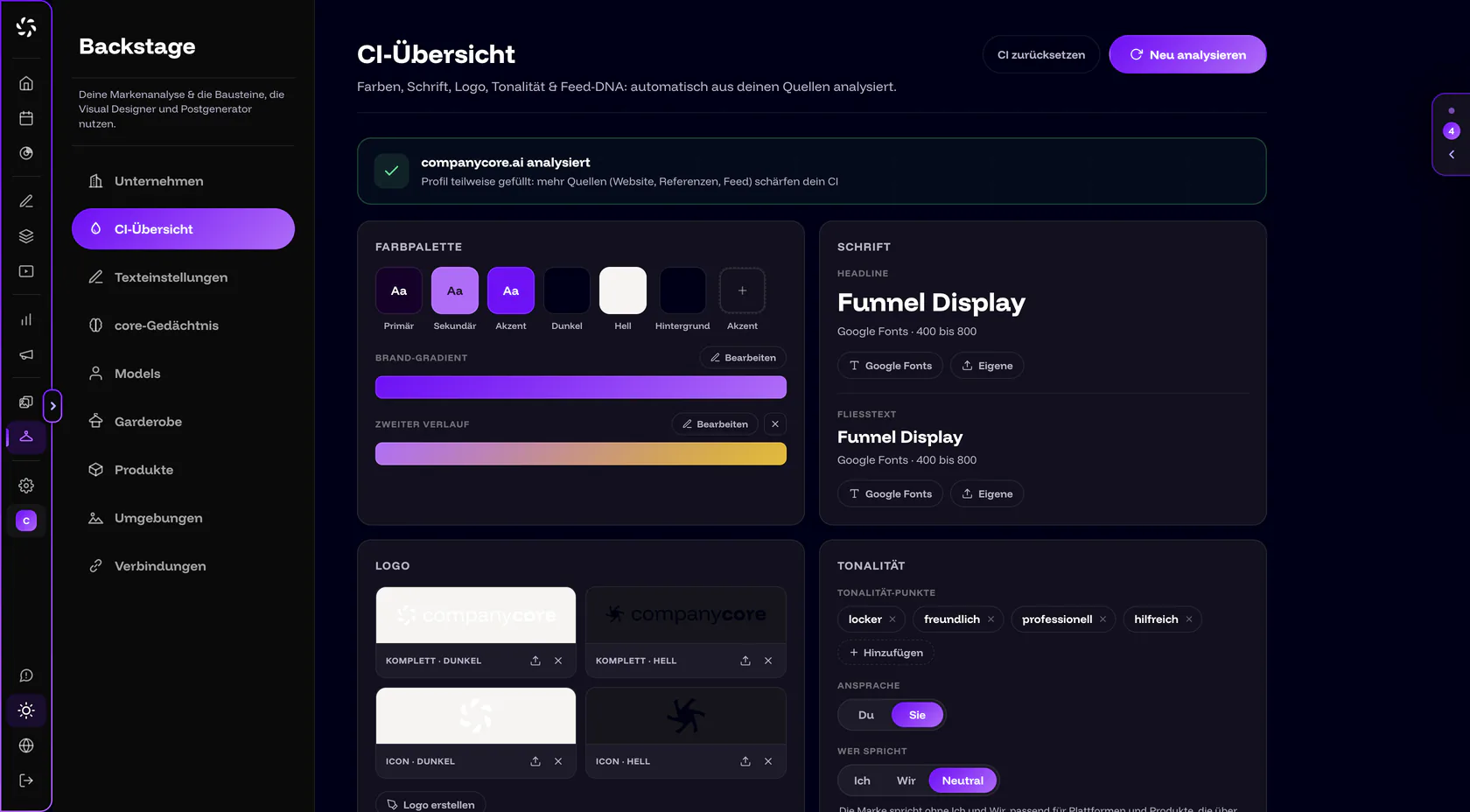
Everything here can be adjusted. If a shade doesn’t fit, click it and set it by hand. The same goes for font, tone of voice and topics. If the banner at the top says “Profile partially filled”, the analysis was missing sources. Add them and re-analyze if needed; that counts against your quota.
| Card | What you check | How you correct it |
|---|---|---|
| Color palette | Do Primary, Secondary, Accent, Dark, Light and Background match your look? | Clicking the color opens the color picker. Afterwards the app says “Color saved, contrasts recalculated ✓”. You add extra accent colors (Accent 2, Accent 3, up to 3 in total) with the Accent button. |
| Font | Are Headline and Body text detected correctly? If “Fallback active” is shown, companycore detected the font on your website but can’t load the font file and shows a substitute font. | Choose a font from Google Fonts or upload your own file: WOFF2 (recommended), WOFF, TTF or OTF, 2 MB at most. Remove resets the font to Inter. |
| Logo | Is your logo in the right slots? There are four: Full · Dark, Full · Light, Icon · Dark and Icon · Light. | For each slot, Upload or Remove. PNG, SVG, WebP and JPEG are allowed. |
| Tone of voice | Do Address, Who speaks, Tone points, Language style and Content pillars fit? | Du or Sie and I, We or Neutral with a click. Tone points are chips; you add new ones with Add. You write the language style as free text. |
| Image styles | Which styles for photos and graphics did the analysis create? | You add your own with Add a style. The switch Offer in the Visual Designer turns a style off per entry. |
For Who speaks, I means a single person, such as a coach or sole proprietor, and the posts are written in the first person singular. We means the company speaks as a team, in the “we” form. Neutral gets by without “I” and “we”.
When do you re-analyze, and when do you reset?
- Re-analyze (top right) runs the analysis again with the current sources. This counts against your quota again.
- Reset CI resets colors, font and tone of voice and deletes the uploaded reference images. Website, logo and company material are kept. You confirm with Reset, after which it says “CI reset ✓”.
Every run counts
Re-analyze also uses up one CI analysis. When the limit is reached, the app says “CI analysis limit reached (…/month). Available again next month.” So correct colors, font and tone by hand rather than re-analyzing.
What does the analysis unlock?
- The Visual Designer. Before, the overlay “Brand first, images second” covers it. Afterwards it works with your colors, fonts and style.
- Topics from your content. The suggestions “From your content” appear as Post ideas on Home and in the Post Generator.
- The brand tone. In the Post Generator, the Brand tone chip appears under Tone as soon as the analysis knows a tone.
Frequently asked questions
Can I start the analysis without a logo?
Yes. Only the website is required. With a logo, company material and reference images, the result gets better, though. You can add a logo at any time.
The analysis detected a color wrong. Do I have to re-analyze?
No. Click the color in the Color palette and set it in the color picker. The app recalculates the contrasts.
Why is the Visual Designer locked?
Because the brand analysis is missing: in the “Brand first, images second” notice, click Analyse the brand now, which takes you to Backstage › CI Overview, and start the run there with Generate CI now. If you don’t have the role for it, the notice says “The owner starts the brand analysis in Backstage.” More in Creating is locked.
Result
Your CI is set: color palette, font, logo and tone of voice are checked and corrected where needed. The Visual Designer is unlocked. Next, you connect a social channel.
Was this article helpful?