

Post Generator: write social media copy with AI
The Post Generator is where the copy for your posts is written, matched to platform, goal and brand tone. Images are made in the Visual Designer or come from your files.
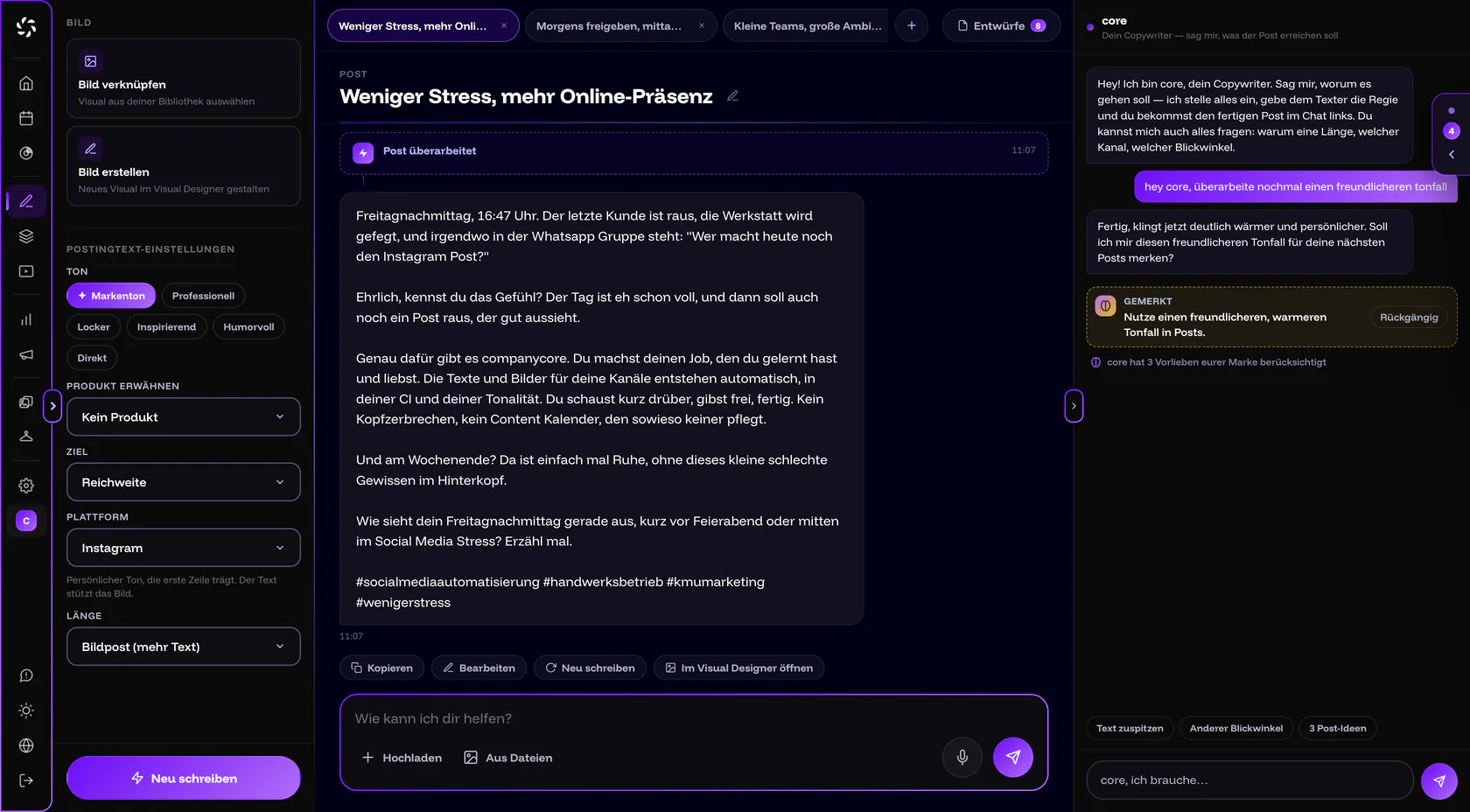
How is the Post Generator laid out?
The screen has three areas. On the left, you set what applies to this one post. The text sits in the middle, and you can change any word right there. On the right is core, the chat where you ask for changes.
On phones and tablets (under 1,000 px wide), the app shows only one area at a time. A switcher toggles between Text, core and Settings. If core replied while another area was open, a red dot appears on the core button. On narrow desktop windows (1,000 to 1,239 px), the core button opens the chat as an overlay.
How to write a post
- Check the settings. On the left, you choose Platform, Tone, Goal and Length. Anything you leave alone comes from your defaults (text settings).
- Pick a topic. Take a card from the topic stack, write the topic in the chat, or start with 3 ideas from core. If you have a photo or a PDF as a starting point, From a photo or document helps.
- Click Generate now. The text appears in the middle, with a status line such as “core reads the brand …” and “checks the channel …”. Without a topic, you get a general post.
- Adjust the text. Click into the text and change whatever doesn’t fit. The app saves on its own.
- Schedule it. Under the text, Schedule takes you to the calendar. There you choose channels and a date. See Schedule a post.
Topic suggestions: where do I start?
When the draft is empty, the text stage shows a stack of topic cards. There are two kinds: From your content (created from your CI analysis and uploaded company content) and Trending topic (current topics that are refreshed regularly as long as you use companycore).
- Use → has core write a post on this topic right away.
- Adjust moves the topic into core’s input field. There you add what matters to you before anything is written.
- Other topics reshuffles the stack.
- A topic you have used is gone, and a new one moves up.
The same topics appear on Home under the Post ideas tab. A click there opens a new draft with that topic. If the stack stays empty, the app still points you to the settings. That is no longer correct: you upload company content under Backstage › CI Overview, in the “Company content” section (as a PDF or pasted text). More in No post ideas.
Drafts and tabs
Every post is a draft. Drafts live in your account, so you find them on any device.
- + (New post) starts another draft. The Drafts button shows all of them, most recently edited first.
- Closing a tab deletes nothing. Deleting happens only in the Drafts window via Delete draft, after a confirmation, and it is permanent.
- Up to 12 tabs are open at once. Older ones drop out of the bar, but the draft is kept.
- Each brand can have at most 100 drafts. After that, the app shows a message in German: „Maximal 100 Entwürfe — bitte erst ein paar einplanen oder löschen.“ (Maximum 100 drafts, please schedule or delete a few first.)
- A new draft is called “Untitled post” until the first text exists. To rename it, click the name (60 characters at most).
Which settings apply to a post?
The settings on the left apply only to the current draft. You maintain your defaults under Backstage › Text Settings.
| Field | Options | Good to know |
|---|---|---|
| Tone | Brand tone, Professional, Casual, Inspiring, Humorous, Direct | Brand tone is available once the CI analysis knows your tone, and it is then preselected. core can also set a custom tone, such as “warm and approachable”; it shows up as an extra choice next to the fixed tones. |
| Mention product | No product or one of your products | Visible only if you have added products in Backstage. The product you choose is sure to appear in the text and is explained based on your description. |
| Mention environment | No environment or one of your locations | Visible only if you have added environments in Backstage. |
| Goal | Reach, Engagement, Leads, Branding, Information | Reach is preselected. |
| Platform | Instagram, LinkedIn, Facebook and YouTube; TikTok as soon as it is enabled for your account | The starting value is the first connected channel, in the order Instagram, LinkedIn, Facebook, TikTok, YouTube. If none is connected, it starts with Instagram. |
| Length | depends on the platform, see the next table | A guideline, not a hard limit. A length rule from core memory takes priority. |
TikTok is being enabled step by step. If it is missing from the list, your account has not been enabled yet. More in Connect TikTok.
Length by platform
| Platform | Choices for “Length” | Default |
|---|---|---|
| Image post (more text), Reel (short & punchy), Video | Image post (more text) | |
| LinkedIn, Facebook | Short (~50 words), Medium (~90 words), Long (~150 words) | Medium (~90 words) or your default from the text settings |
| TikTok, YouTube | Short (~50 words) and Medium (~90 words), no Long | Short (~50 words) |
If you switch platforms, the app converts the length sensibly, for example from Short (~50 words) to Reel (short & punchy).
What the panel shows for each platform
Under Platform, a sentence shows what the text is tuned for on that channel:
- Instagram: “Personal tone, the first line carries. The text supports the image.”
- LinkedIn: “Matter-of-fact structure, strong opener, paragraphs instead of a wall of text.”
- Facebook: “Approachable and conversational, kept short, no link clutter.”
- TikTok: “A quick hook in the first line, few hashtags, a casual tone.”
- YouTube: “The title carries the search, the description explains what it’s about in a sentence or two.”
Settings changed: Revise or Rewrite?
If you change tone, goal, length or platform after a text exists, a bar appears above the text: “Changed since the text:” followed by the change, such as “Tone: old → new”. You have two options:
- Revise adjusts only what changed. Content and facts stay.
- Rewrite takes the same topic and the same facts, but builds the text from scratch.
Edit the text
The text in the middle is a normal text field. A line above the text shows your current settings in short form; a click on it jumps to the matching field in the panel.
- Saving: The app saves automatically. The status switches between “Saving …” and “Saved ✓”. If saving fails once, it says “Not saved – keep typing, I will retry”. Just keep typing.
- Counter: A counter shows how many characters and words the text has.
- Text tools: They offer emojis, Bullet list (puts “• ” in front of every selected line) and the special characters • → — ✓.
- Font size: Smaller text, Larger text and Back to 100% change only the view. Overview shows the whole text at a glance.
- Actions under the text: Copy, Rewrite, Open in the Visual Designer and Schedule.
No bold, no italic
There is no bold or italic in the Post Generator. The app explains: “Platforms do not support bold/italic — this will be published as plain text.” To structure a text, use emojis, bullet points (•), arrows (→) and check marks (✓).
How much text is visible before “more”?
The Post Generator shows “Visible before ‘more’” with the character count and marks the cut-off in the text. Whatever comes before it, people read without clicking. So put your most important thought first.
| Platform | Visible before “more” (guideline from the app) |
|---|---|
| about 125 characters | |
| about 140 characters (mobile) | |
| about 400 characters | |
| TikTok | about 125 characters |
| YouTube | about 40 characters |
These are guidelines from the app, not official platform figures. Where exactly the text is cut depends on the device and the app version.
Are earlier versions lost?
No. The Post Generator keeps the last 8 versions as numbered pills. A click opens the preview, and Use this version makes it the current one (“Version restored”). If you changed the text yourself, it says “edited by hand”.
Image for the text, and scheduling
At the top of the left panel, there are two ways to get an image. The images themselves live in Files (on Home, the area is called Photo Library).
- Link image opens your files. You can only pick images there, not videos. The image goes into the post when you schedule it. Unlink takes it out again.
- Create image opens the Visual Designer with your text. The text comes along.
If an image is linked and no topic is set yet, Generate now writes a text that fits the image.
What happens when I schedule?
Schedule needs two things: a text and at least one connected channel. If the text is missing, the app says “There is no text for this draft yet.” If no channel is connected, “No channel connected yet” appears with the button Open Backstage (see Connecting channels).
Then the calendar opens with a new publication, prefilled with the text and the linked image. You choose the channels there. The publication is only created once you save in the calendar. Your draft stays in the Post Generator (“Created in the calendar. The draft is still here.”).
If you later change the text in the Post Generator, the calendar follows as long as the publication there is still a Draft and you have not edited the text in the calendar yourself.
Good to know
Nothing goes out until you have scheduled the post. If your team uses approvals, the post must also be approved. More in Approvals.
Frequently asked questions
Does the Post Generator write the image too?
No, it writes text only. Images are made in the Visual Designer or come from your files. With Create image, you take the text along.
Can I make text bold or italic?
No. According to the notice in the app, neither is supported on the platforms, so there is no bold or italic tool. To structure text, use emojis, bullet points and arrows.
Are drafts lost when I close a tab?
No. The draft stays saved and is listed under Drafts. It is deleted only via Delete draft.
Why is “Mention product” or “Mention environment” missing?
The fields appear only if you have added products or environments in Backstage. How to do that is in Products and environments.
What does “The text is being written, one moment.” mean?
You clicked while a text was still being written. Wait until it is done. Your topic stays in the input field.
Was this article helpful?