

Invite your team, assign roles and manage brands
From the Pro plan, you invite colleagues and run several brands. Every person needs their own login, because a login is only ever active on one device.
Which plan has team and brands?
The Team, Brands and Permissions tabs only exist with an active Pro or Max plan, including during the trial. On the Starter plan you have exactly one login and one brand.
| Plan | Users | Brands | Team, permissions, approvals | “Client” role |
|---|---|---|---|---|
| Starter | 1 | 1 | no | no |
| Pro | up to 5 | 2 | yes | no |
| Max | multiple | multiple | yes | yes |
Open invitations count as a used seat. At the top right of the Team tab you see how full your plan is, for example “2 of 5 seats used”.
How do I invite a team member?
Owners and admins can invite. Only the owner assigns the Client role.
- Open Team. Go to Settings › Team.
- Enter the address. Under Invite member, enter the person’s Email address.
- Choose a role. The Role field offers Editor, Viewer and, on the Max plan only, Client. Admin isn’t available: invite the person as an editor, then the owner switches them to Admin.
- Click Invite. The app reports “Invitation sent to … ✓”. The person appears in the list with the Invited badge.
- Have them accept. The person clicks the link in the invitation email, enters first name, last name and password and clicks Create access. Then they log in.
If the email doesn’t arrive, click Resend in the list. Invited people don’t register themselves through “Sign up now”. There the message appears: “You’ve already been invited to an organization — use the link from the invitation email.”
One email, one account
An email address belongs to exactly one organization. If the person already has a companycore account, the app reports “This email already has a companycore account.” Use a different address then.
Which roles are there?
| Role | What they can do |
|---|---|
| Owner | Everything: plan, billing, usage, company details, permissions, creating and deleting brands, assigning all roles. There can be several owners. |
| Admin | Like the owner, but without billing, usage, company details and permissions. Invites editors and viewers, approves posts, connects social accounts, edits brand and CI, and renames brands. Can’t create or delete brands, and can’t assign the Owner, Admin and Client roles. |
| Editor | Creates content. Their scheduling needs approval by default. Connecting social accounts and editing brand and CI is only allowed if the owner permits it under Permissions. |
| Viewer | Can only view and change their own account details. For create buttons, the message “Your access is view-only.” appears. |
| Client (Max only) | Only sees the Calendar and Settings › Notifications, can approve posts and, if allowed, take them out of the schedule. Belongs to exactly one brand. |
If you use the German interface, the Team tab calls this role “Betrachter”, while Notifications says “Viewer”. It’s the same role.
What can editors do, and how do I change that?
Only the owner sees the Permissions tab (title “Permissions & approvals”). The switches apply to all editors. Admins always have the permissions.
| Switch | Default | Effect |
|---|---|---|
| Approval for scheduling | on | Publications scheduled by editors only appear once an admin or the owner has approved them. |
| Manage social accounts | off | Editors can connect and disconnect social media accounts. |
| Edit brand & CI | off | Editors can edit the brand profile, the CI analysis and company content. |
| Client approval (Max only) | off | In addition, the client has to approve publications. This runs as a second stage after the admin. |
| Client may unschedule (Max only) | off | The client can set scheduled publications back to draft. |
How approvals look in the calendar is covered in Approvals.
How do I change roles, transfer ownership or remove someone?
- Change a role. In the person’s row, pick the new role. Only the owner assigns the Owner, Admin and Client roles.
- Transfer ownership. If you choose Owner, the Transfer ownership dialog asks to confirm. The person can then manage members, roles and the plan. You confirm with Make owner.
- Remove a member. Remove ends access immediately and deletes the person’s login. The app then reports “Member removed ✓”.
- Last owner. They can neither be demoted nor removed: “The last owner can’t be demoted or removed.”
Why does every person need their own login?
A login is only ever active on one device. If you log in on a second device, the first one is logged out. There it says: “You were signed out because your account was signed in on another device.” Several tabs in the same browser are no problem. A shared login for the team therefore doesn’t work. Invite each person instead, from Pro. More help with logouts: Login problems.
How do I run several brands?
Pro allows 2 brands, Max several. Each brand has its own content, connections and settings. Some things, however, apply to the whole organization together.
| Area | Applies to |
|---|---|
| Backstage with CI Overview, Text Settings, core memory, Models, Wardrobe, Products, Environments and Connections | each brand separately |
| Files | each brand separately |
| Drafts, Calendar and posts | each brand separately |
| Notifications in the app | each brand separately; you only see those of the active brand |
| Post ideas | each brand separately |
| Plan, billing and invoices | the whole organization |
| Quotas under Usage | the whole organization (“All brands combined”) |
| Team, roles and permissions | the whole organization |
| Company details | the whole organization |
Create a new brand
Only the owner can do this.
- Open Brands. Go to Settings › Brands. At the top it says how many brands your plan allows, for example “1 of 2 brands”.
- Enter a name. Under Create a new brand, type the Brand name into the field.
- Click Create brand. The app reports “… has been created”, makes the brand active and jumps to the Backstage.
- Set up the brand. The new brand starts empty. You set up content, connections and settings in the Backstage, as described in Set up your brand.
Owners and admins can rename a brand via Rename.
Switch between brands
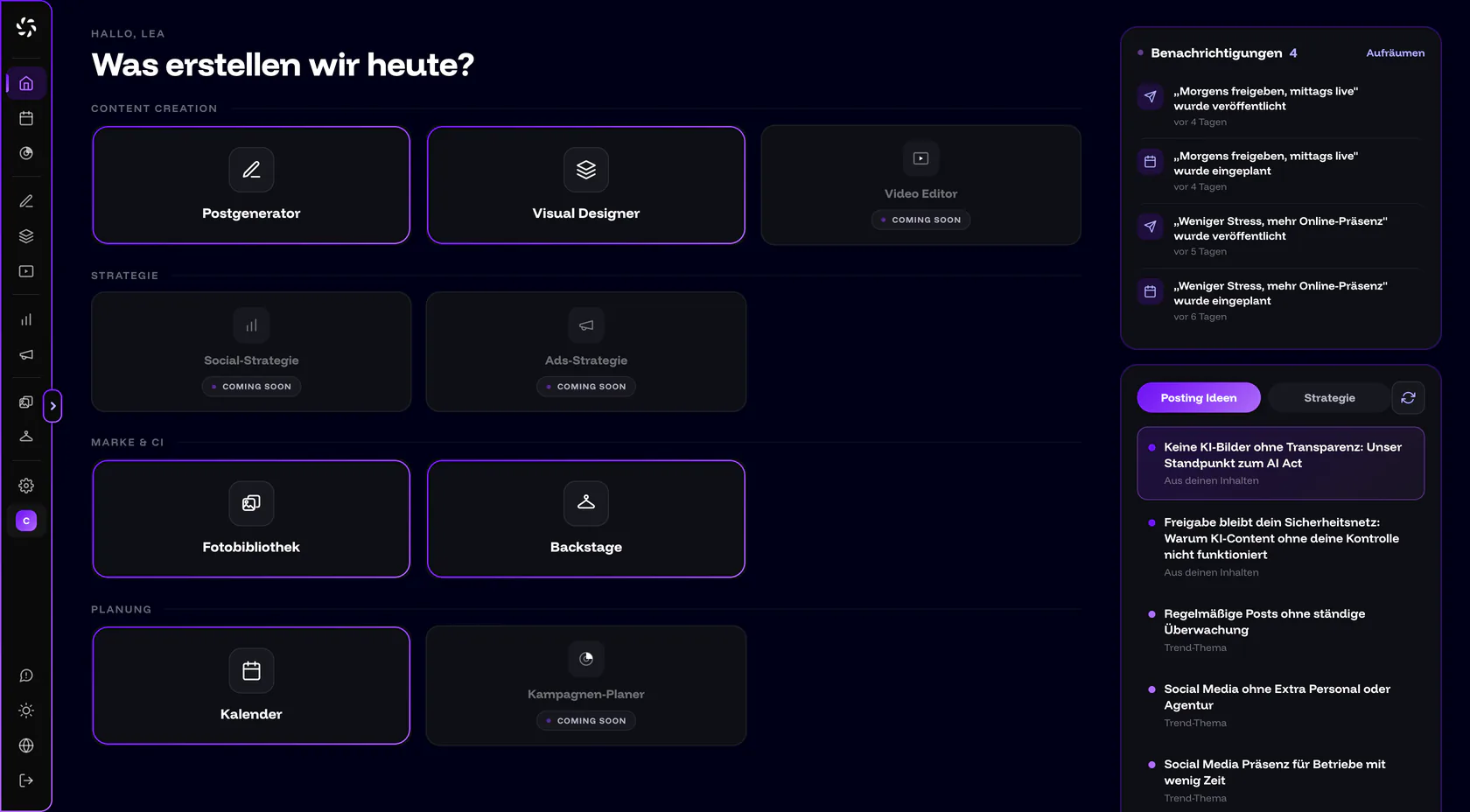
- Open the switcher. It sits in the sidebar below Settings and shows the initial and the brand name. It only exists from Pro.
- Choose a brand. In the Switch brand menu you see every brand, with a checkmark on the active one. At the bottom, Manage brands leads to the Brands tab.
- Wait a moment. The current page reloads with the new brand’s data.
Only one brand per browser
The active brand applies to the whole browser. If you switch in one tab, all other tabs switch too. An upload running in another tab is canceled in the process. So don’t work on two brands in two tabs.
Delete a brand
Only the owner can do this too. In the Delete brand dialog, all of the brand’s content disappears: posts, images, models, connections and settings. This can’t be undone. To confirm, you type the brand’s name, then click Delete permanently. The last brand can’t be deleted.
How does client access work for agencies?
On the Max plan, the owner invites clients with the Client role. In the sidebar, the client only sees the Calendar. Every other page redirects there. The only exception is the notifications in the settings, so clients can unsubscribe from emails. In the calendar they see what is waiting for their approval or has already been approved, and they can approve or decline.
Each client login belongs to exactly one brand. If a client belongs to several brands, the app reports: “Your customer access belongs to several brands — companycore does not support this yet. Please contact your agency.” Feedback that a client submits in the app goes to companycore, not to your agency. If the agency switches to a plan without client access, the client’s access ends.
Frequently asked questions about team and brands
How many people and brands fit in my plan?
Starter has one user and one brand, Pro up to 5 users and 2 brands, Max multiple users and brands. Open invitations count as a used seat.
What does “Team limit reached” mean?
All seats in your plan are taken, and open invitations count too. Remove an invitation or a member via Remove, or switch to a bigger plan.
Can an editor schedule without me having to approve?
You decide that under Permissions with the Approval for scheduling switch. It is on by default: editors schedule, and an admin or the owner approves. Admins and owners schedule directly.
Why don’t I see the “Team” and “Brands” tabs?
They only appear with an active Pro or Max plan. On the Starter plan and without an active plan they are hidden. Also, only the owner sees Permissions.
What does “Brand limit reached” mean?
Your plan doesn’t allow another brand. Pro includes 2 brands. For more brands you need a bigger plan.
Was this article helpful?