

Write your first post and design the image
For your first post you need a topic, copy from the Post Generator and an image from the Visual Designer or your files. You can change every word and every element afterwards.
Time needed: about 15 minutes. You need: a running trial (Step 3) and, for the image, the finished CI analysis (Step 5).
How do you find a topic?
Two routes lead to your first draft:
- Via Home. On Home, open the Post ideas tab on the right and click an idea. The Post Generator opens a new draft, and core immediately writes copy on that topic.
- In the Post Generator. In an empty draft, the page asks “What should your post be about?” You get the buttons 3 ideas from core, From a photo or document and Which channel fits?, plus a stack of topic cards. Use → has core write right away. Adjust copies the topic into the input field so you can add to it.
Each card names its origin: “From your content” comes from the CI analysis and your company content, “Trending topic” from current topics.
How do you have the copy written?
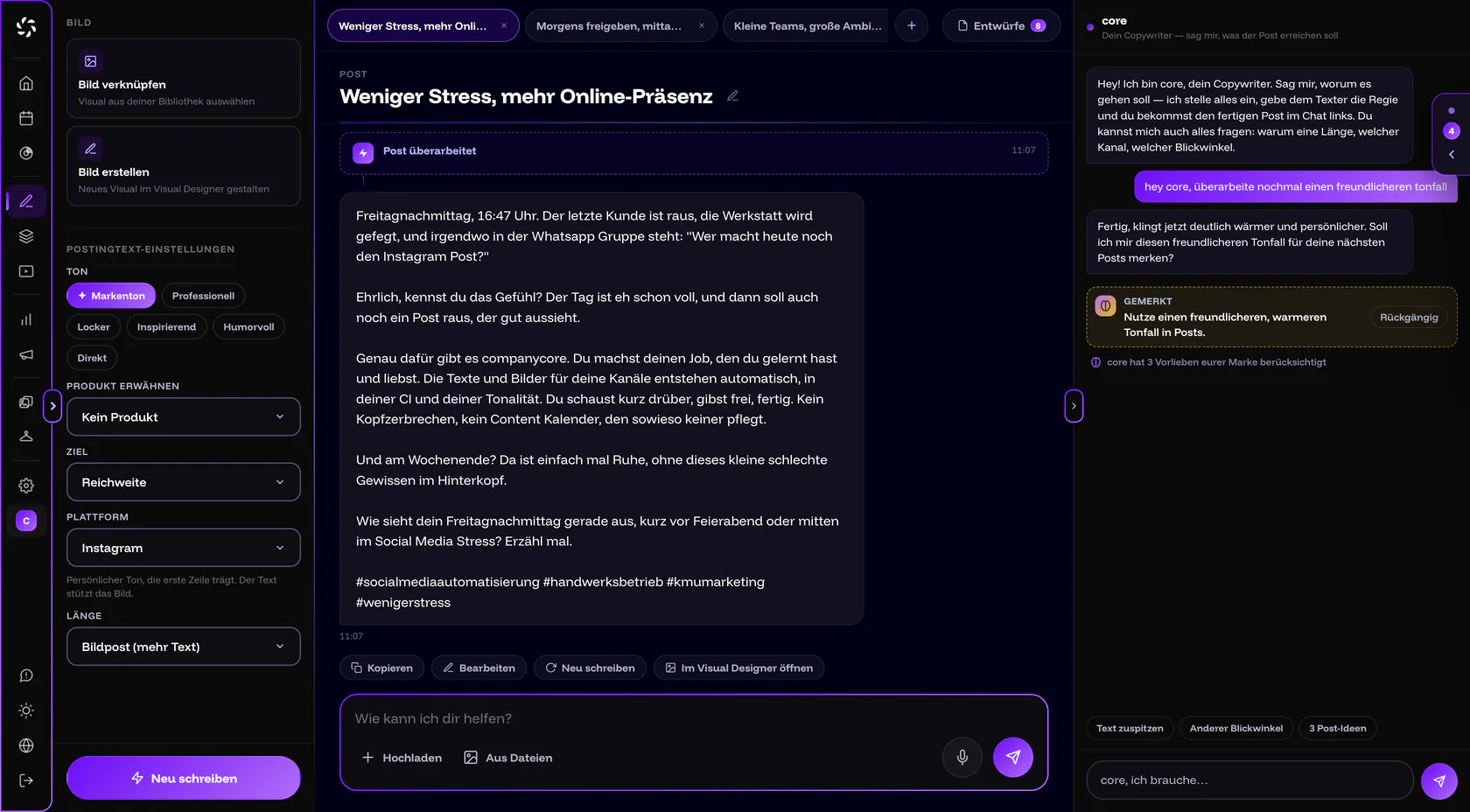
On the left in the panel, you set the Post text settings. They only apply to this draft; the default comes from Backstage › Text Settings. Then you click Generate now at the bottom. If text is already there, the button is called Rewrite.
| Field | Options |
|---|---|
| Tone | Brand tone (appears as soon as the CI analysis knows a tone), Professional, Casual, Inspiring, Humorous, Direct |
| Goal | Reach (default), Engagement, Leads, Branding, Information |
| Platform | Instagram, LinkedIn, Facebook and YouTube. TikTok is only available if it’s enabled for you. The starting value is your first connected channel in the order Instagram, LinkedIn, Facebook, TikTok, YouTube. |
| Length | For Instagram: Image post (more text), Reel (short & punchy) or Video. For LinkedIn and Facebook: Short (~50 words), Medium (~90 words) or Long (~150 words). The length is a guideline, not a hard limit. |
Instead of clicking, you can also talk to core. Write into the Ask core what you need… field what the post should achieve. core sets channel, tone and length and has the text written. With Upload or From files, you attach up to 4 files per message, images or a PDF. core then writes to match the image or based on the document. More about core: core in the Post Generator.
Examples of instructions for core
Name the occasion, channel and tone: “core, I need an Instagram post: from Monday we have two balayage appointments free, casual in tone.” Or: “Write a LinkedIn post about our new heating maintenance, factual and short.” With an attached photo, this is enough: “Write me a text to go with this image.”
Every text core writes and every message to core counts as one AI text run against the monthly quota. During the trial, it’s reduced. The owner can see the status under Settings › Usage.
How do you adjust the copy?
- Type directly in the text field. Changes are saved automatically. The indicator switches between “Saving …” and “Saved ✓”.
- Ask core for polish. When there’s text, core offers the shortcuts Proofread, Tighten the copy, Different angle and Shorter. Proofread checks the text like a strict editor and offers corrections you can click.
- Watch the hook. The line Visible before “more” shows how much of the text is visible on the platform before it cuts it off.
- Compare versions. In the text stage, the latest versions appear as numbered pills. With Use this version, you bring one back. Nothing is lost.
- Write without bold and italics. The platforms can’t do either, and the app points this out. For emphasis, the Text tools offer emojis, bullet lists with • and the characters → and ✓.
How does an image get into the post?
You have three ways:
- Create image. Create image in the panel (“Design it in the Visual Designer – your text comes along”) opens the Visual Designer. Your text is linked there as the post text, and you click Generate now. This requires the CI analysis. Without it, the overlay “Brand first, images second” covers the Visual Designer.
- Link image. Link image (“Pick a visual from your library”) pulls an image from Files. You can only choose images, not videos. The image goes along when you schedule. If an image is linked and no topic is set yet, Generate now writes copy to match the image.
- Upload a photo. In the empty Visual Designer, Upload a photo is waiting: “Drop in a phone photo and I’ll turn it into a post.” For example, a photo of a finished construction site makes a good starting point.
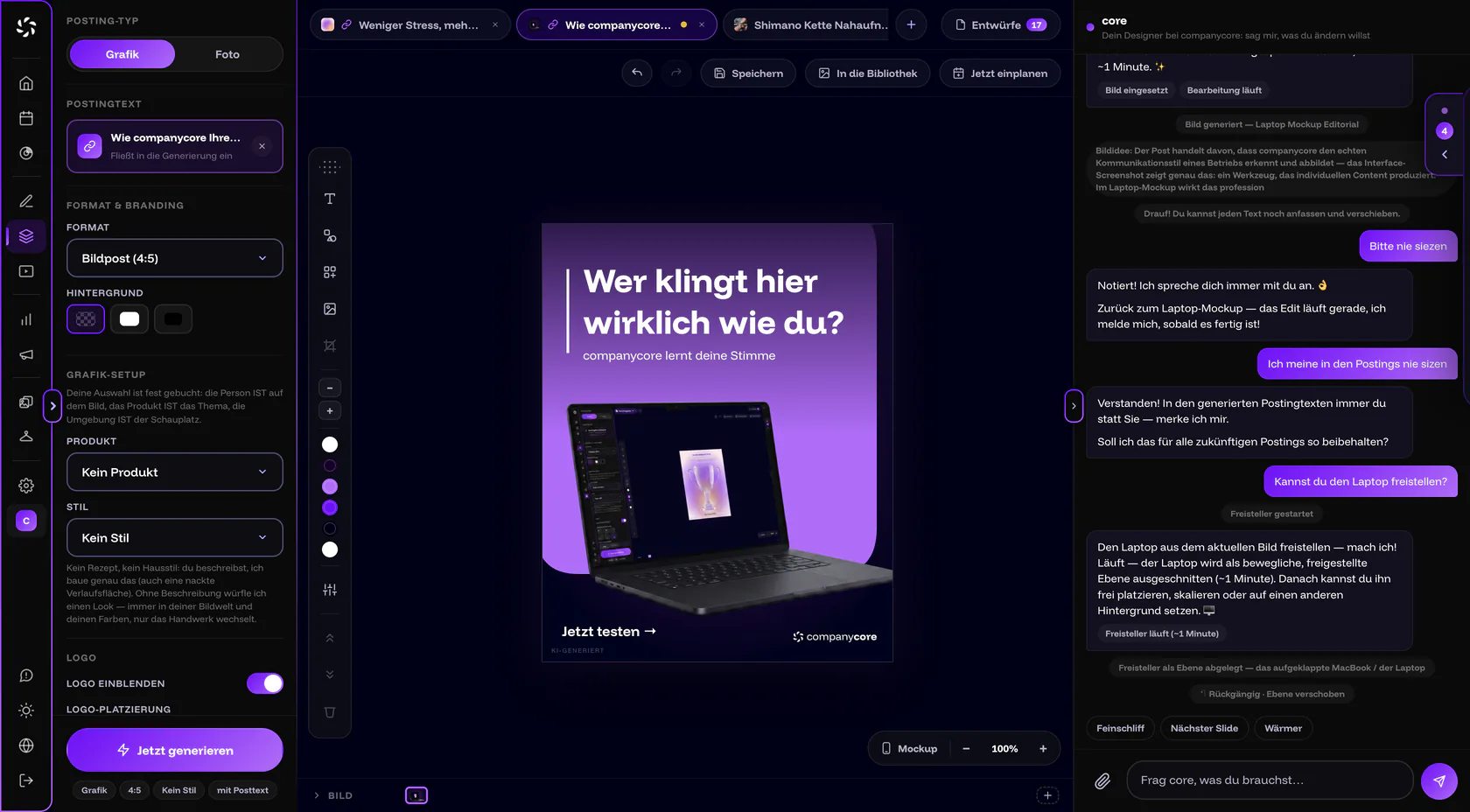
On the left, you set the Posting type, Graphic or Photo, and the Format. Graphic and Feed post (4:5) are preset. On a phone, the Visual Designer works only as a preview; you edit there via the settings and core. More: Generate images with core.
What do you check before you schedule?
- Are the facts, prices, dates and names in the text correct?
- Does the form of address fit, Du or Sie?
- Is the right Platform set in the settings?
- Does an image that looks like a real photo still carry the label “AI-GENERATED” or “AI-MODIFIED”?
The Visual Designer adds the label to images that could look like real photos. “AI-GENERATED” stands for a newly generated image, “AI-MODIFIED” for an edited real photo. By default it sits at the bottom left. Leave it in place. Why is explained in AI labeling in companycore.
Open the Post Generator in the app
Result
You have a post draft with copy and image. It isn’t scheduled yet, and as long as you don’t schedule it in the Calendar, nothing goes out. You do that in the next step.
Was this article helpful?