

Visual Designer: create images in your brand look
In the Visual Designer, you make your images and carousels: generated by core or built from your own photos, always in your colors and fonts. Text, logo and shapes are editable layers.
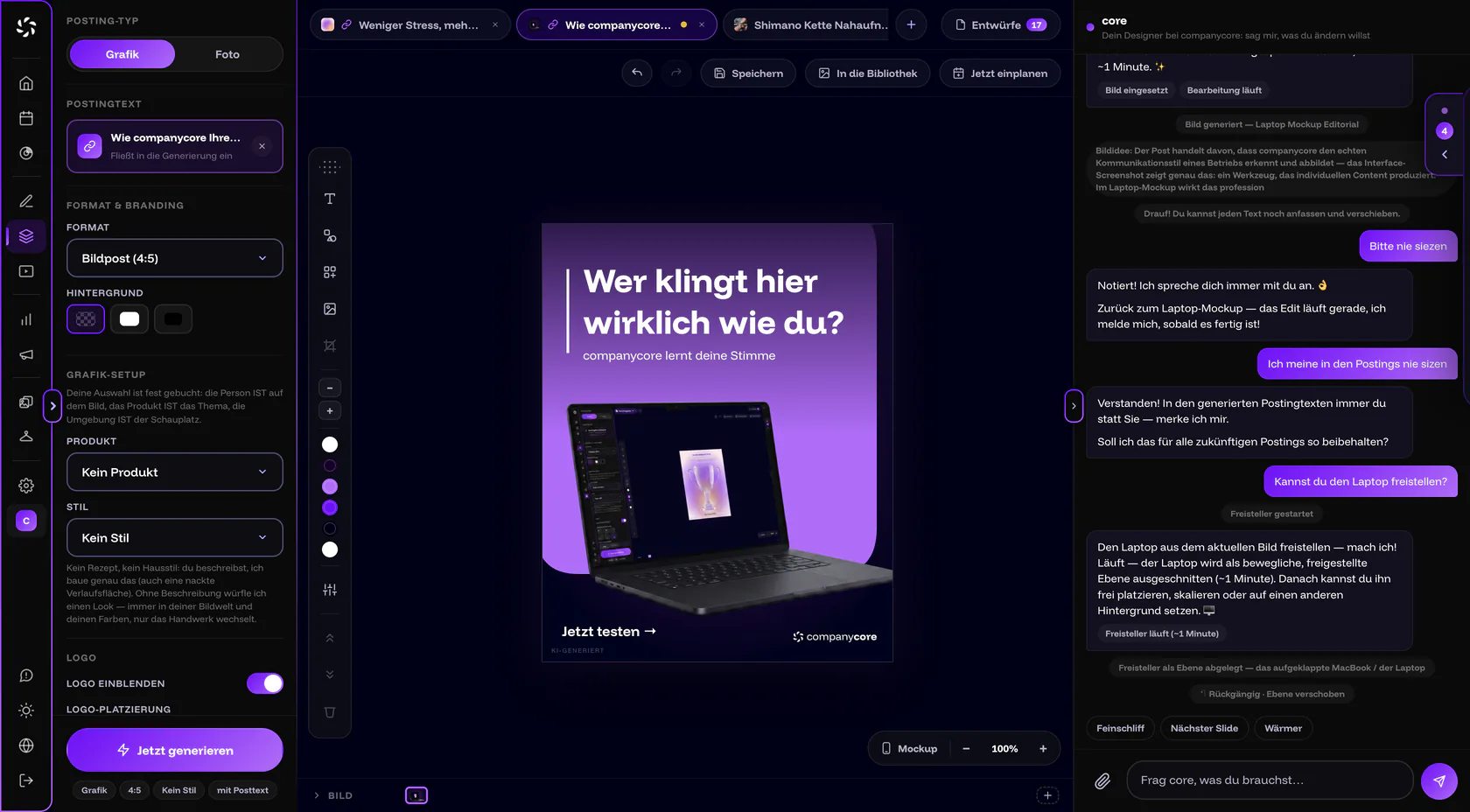
What do I need first, and how is the screen laid out?
- A CI analysis. If it is missing, the page shows “Brand first, images second” with the button Analyse the brand now. The button leads to the CI Overview in Backstage. If you are not the owner, you read there: “The owner starts the brand analysis in Backstage.” More in CI Overview.
- A trial or a plan. Without either, you can look at everything but generate nothing. See Creating is locked.
- A connected channel, as soon as you want to use Schedule now.
Why the CI analysis is required
The Visual Designer works with your colors, fonts and style. Without the brand analysis, it could only produce something generic. That is why it stays locked until then.
The settings are on the left. In the middle are tabs, stage and slide bar, and core sits on the right. You collapse the core panel with Collapse/expand core. Every open composition has a tab at the top, and + starts a New composition. Next to it, Templates and Drafts open their lists.
On a phone (under 768 px wide), the stage is only a preview. You can’t drag, scale or rotate layers there. You work through Settings and core. Tablet and desktop (768 px and up) offer full editing.
A new composition starts as a Graphic in the Feed post (4:5) format, with a transparent background and the logo shown, provided you have stored one. Where required, the AI label sits at the bottom left at 25% opacity.
How to design your first image
- Start a new composition. Click + in the tab bar. On the empty stage, you can also upload a phone photo (Upload a photo), pull an image From the library or start From template.
- Choose posting type and format. Graphic is for type, shapes and colors, Photo for photorealistic images. You choose the format below that, for example Feed post (4:5) for the feed or Story (9:16).
- Link a post text (optional). Choose a draft from the Post Generator. The image then relates to your text.
- Click Generate now or describe to core in the chat what should be created. More in Generate images with core.
- Fine-tune on the stage. You adjust text, logo, shapes and colors directly, see below.
- Save or schedule. Save stores a draft, To library the finished image, and Schedule now opens the calendar.
The left panel and the formats
| Section | What you set there |
|---|---|
| Posting type | Graphic (graphic post in CI look: type, shapes, colors) or Photo (photorealistic, with your models from Backstage). |
| Link post text | Connects a draft from the Post Generator to the image. With Remove link, you disconnect it again. |
| Format & branding | Format and Background (Transparent, White, Black). With Transparent, the app exports without a background fill. |
| Photo setup / Graphic setup | Photo: Person, Outfit, Product, Environment. Graphic: Product only. The fields appear only if you have added something in Backstage. |
| Style | The groups Your brand and Catalogue, or No style. All styles: Generate images with core. |
| Logo | Show logo, Logo placement (six positions, freely draggable) and Logo variant if several are stored. |
| Brand elements | Shapes, bars, frames and icons from Backstage. A click inserts them, and dragging drops them where you let go. |
| AI disclosure | Appears only if the image can look like a real photograph. See AI label in companycore. |
At the very bottom of the panel are Keep look and Generate now. Below them, one line sums up your brief, such as type, format and style.
Formats
| Format | Size | Grouping in the app |
|---|---|---|
| Feed post (4:5) | 1,080 × 1,350 px | The usual |
| Story (9:16) | 1,080 × 1,920 px | The usual |
| Square (1:1) | 1,080 × 1,080 px | More formats |
| Portrait (3:4) | 1,080 × 1,440 px | More formats |
| Horizontal (16:9) | 1,920 × 1,080 px | More formats |
| Pinterest (2:3) | 1,000 × 1,500 px | More formats |
| Link preview (1200×628) | 1,200 × 628 px | More formats |
| Custom size … | 320 to 4,096 px per side | Enter Width and Height yourself |
If TikTok is enabled for your account, the app also shows Safe zones for with Story and TikTok at 9:16. When you move layers, you then see what the platform covers: on TikTok, the action bar on the right and the caption at the bottom. Which format fits which platform is covered in Formats and limits and Image formats 2026.
Work on the stage
- Add text: Double-click edits the text. The Typography flyout offers weight (Normal or Bold), alignment, font (Display or Body), shadow, letter spacing, line height and ALL CAPS. The fonts come from your brand.
- Insert shape: Rectangle, circle, ring, arrow, line and more shapes, plus fields such as color field, gradient scrim and wave field.
- Insert blocks: ready-made elements such as Badge, CTA button, Swipe hint and Number + word (stat). They take font and weight from your brand.
- Load image into frame: from your files or by upload. Drag an edge to adjust the crop.
- Color grading: brightness, contrast, saturation and warmth. It takes effect immediately and costs no image generation.
- Object settings: position and size in px, rotation, opacity, corners, outline and shadow.
- More tools: Duplicate, Bring forward, Send back and Delete element. Colors to choose from are your brand colors, white and “Custom colour”.
You edit a text by double-clicking. Enter starts a new line. You finish with Esc, by clicking elsewhere or with ⌘/Ctrl + Enter. With ⌘/Ctrl + B, you make the selected part bold.
Layers: nothing is painted into the image
Everything you see on an image is a layer: the Base image, the Logo, every text and every shape. The Layers panel lists them. You can rename layers, move them forward or back, delete them and protect them with Lock layer. Locked layers can’t be moved, edited or deleted, and core respects that, too.
Mockup: how the post looks on a phone
The Mockup button shows a phone preview with the platform’s interface, light or dark. The preview changes nothing and is not exported. According to the note in the mockup, Instagram extends feed images outside 4:5 up to 1.91:1 with a border instead of cropping them.
Keyboard shortcuts
On a Mac, use ⌘. On Windows, use Ctrl.
| Shortcut | Effect |
|---|---|
| ⌘/Ctrl + Z | Undo |
| ⌘⇧Z or Ctrl + Y | Redo |
| ⌘/Ctrl + C and ⌘/Ctrl + V | Copy and paste a layer, also into another slide or tab |
| ⌘/Ctrl + D | Duplicate a layer |
| Del | Delete a layer |
| Arrow keys | Move a layer by 1 px, with Shift by 10 px |
| Hold Space and drag | Move the canvas |
| ⌘/Ctrl + mouse wheel | Zoom |
| Shift or ⌘ + click | Select several layers |
| Esc | Clear the selection |
Saving, library and scheduling
- Drafts are saved automatically by the app shortly after every change. Save also stores the composition under Drafts in the Visual Designer (“Draft saved ✓”). It stays there until you put it in the library.
- To library bakes the image pixel-perfect, including layers, logo and, where applicable, the AI label, and puts it in Files (on Home Photo Library). You choose the location: the top level, a folder or New folder …. Several slides land as a set. More in Files and videos.
- Schedule now puts the images in the library and opens the calendar with a new publication. Up to 10 images go along (1 for a story), plus the linked post text. You need an image and a connected channel for this.
- Undo goes back 30 steps, even across generations: the previous image comes back.
What the Visual Designer deliberately doesn’t do
- It never paints text or logo into the image. Both are layers you can change at any time.
- It doesn’t invent people. People come only from your model or your own photo.
- It doesn’t edit videos. The app says: “Videos cannot be opened in the Visual Designer (yet).” The Video Editor appears in the sidebar with “Soon” and is in development.
- It doesn’t edit on the stage on a phone. There you only get the preview.
Frequently asked questions
Why does the Visual Designer show “Brand first, images second”?
Your CI analysis is still missing. Click Analyse the brand now or open Backstage › CI Overview; the analysis starts as soon as your trial or plan is running. The steps are shown in Start the CI analysis.
Can I use my own photos?
Yes. Upload a photo on the empty stage or pick one from your files. core can recolor it, retouch it or stage it as a product photo, and the real content stays intact (Generate images with core).
Does every image count toward the quota?
Every image that core creates or edits counts toward the Image generations quota. Color grading costs nothing. More in Usage and quotas.
What do I do about “Generation failed. Please try again.”?
Start Generate now again. Often it is a temporary error. If the app says “The content was rejected for safety reasons.”, reword the brief.
How many images can I schedule per post?
Up to 10 images go along from the Visual Designer, and 1 for a story. How carousels are built is covered in Carousels and templates.
Was this article helpful?