

CI Overview: colors, fonts, logo and tone of voice
The CI Overview in the Backstage is the brand handbook companycore works from. What the analysis detects, you check and correct here – separately for each brand.
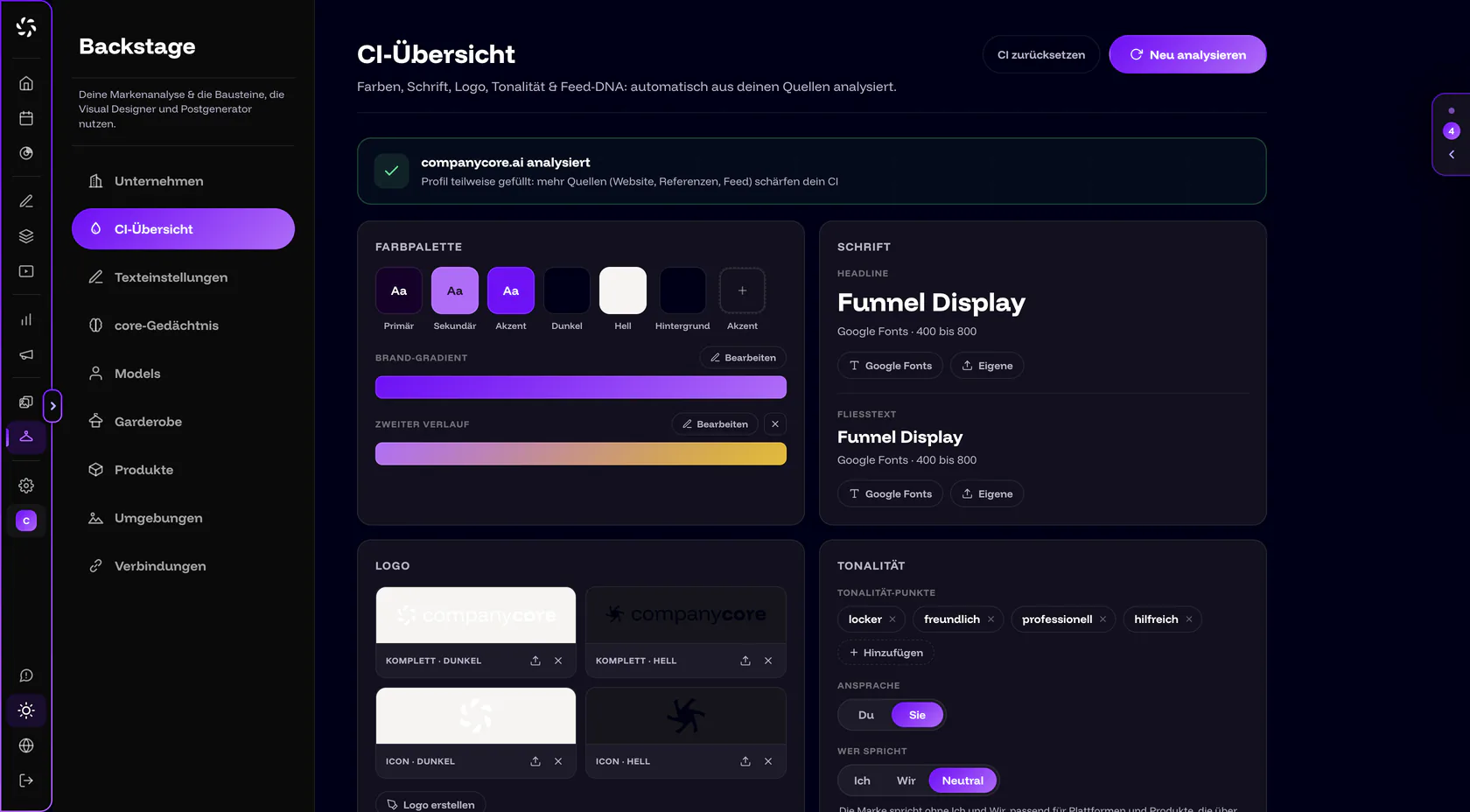
What is the CI Overview?
You find the CI Overview under Backstage › CI Overview. It records how your brand looks and sounds: colors, fonts, logo, tone of voice, image styles and brand elements. The app describes it like this: “Colors, font, logo, tone & feed DNA: analyzed automatically from your sources.”
The CI analysis fills it in. It reads your website, logo, documents and reference images in a single run. Only the website is required. How to start the analysis is covered in Run the CI analysis.
Everything here applies to the brand you have currently selected. If you have several brands (from the Pro plan), you switch with Switch brand in the sidebar. More in Team, roles and brands.
Which card does what?
The Visual Designer and the Post Generator use the cards as their foundation. Here is how they work:
| Card | What you maintain there | Where it takes effect |
|---|---|---|
| Color palette | Primary, Secondary, Accent (up to 3), Dark, Light, Background and the Brand gradient | Visual Designer: The color choices for text and shapes consist of your brand colors, white and a custom color. |
| Font | Headline and Body text, from Google Fonts or as your own file | Visual Designer: The fonts for text on the image come from the brand. |
| Logo | Four slots: Full · Dark, Full · Light, Icon · Dark, Icon · Light | The analysis reads the brand colors from the logo. In the Visual Designer you place it on the image with Show logo. |
| Tone of voice | Tone points, Address, Who speaks, Language style, Content pillars | Post Generator: This is how your posts sound. Details in Text settings. |
| Image styles | Your own styles for photos and for graphics, created with Add a style | Visual Designer: The styles appear in the Style field under Your brand when Offer in the Visual Designer is on. |
| Brand elements | Shapes, bars, frames, icons and stickers with transparency (up to 60) | Visual Designer: Brand elements section. One click places an element, dragging drops it where you want it. |
| Company content | PDF or text, for example your About page, your services or a white paper | Feeds into the analysis, serves the Post Generator as a factual basis and delivers topic suggestions. |
| Reference images | 4 to 6 sample posts, 10 at most (section Imagery & reference images) | The analysis learns your image style from them. With fewer than 4 images, no style analysis starts. |
| Feed DNA | Nothing yet: The card is marked “Coming Soon”. | No function yet. |
How do you correct colors, fonts and logo?
After the analysis run, the app shows the message “Your CI is ready — take a moment to review it”. Everything can be adjusted. It’s worth taking a close look at the colors in particular.
Colors
- Click a color. On the Color palette card, clicking a color, such as Primary, opens the color picker.
- Adjust the shade. Match the color to your logo or your CI manual.
- Wait for confirmation. The app reports “Color saved, contrasts recalculated ✓”. companycore recalculates the contrasts at the same time.
Check the colors first
If the analysis doesn’t hit a shade exactly, click it and set it yourself. The same goes for fonts, tone of voice and topics.
The Brand gradient below the palette is your brand’s color transition. With Edit (or Create, if none exists yet) you choose Linear or Radial and set the Color stops. You add a second gradient with Add second gradient. You add further accent colors with the Accent button, up to 3 in total. Whether core uses the gradient as a backdrop for images is a setting in core memory under Use the CI gradient as a backdrop.
Fonts
Under Font you set Headline and Body text separately. You choose from Google Fonts (search field Search fonts…, sorted into groups such as Sans-serif, Serif and Display & Character) or upload your own font file: WOFF2 (recommended), WOFF, TTF or OTF, 2 MB at most. If you remove a font, companycore falls back to Inter.
If a font shows Fallback active, the analysis detected it on your website but can’t load the font file. A substitute font is therefore displayed. Upload your font file or pick a similar font from Google Fonts.
Logo
The Logo card has four slots: Full · Dark, Full · Light, Icon · Dark and Icon · Light. Each slot offers Upload and Remove. PNG, SVG, WebP and JPEG are allowed.
Upload the logo before the first analysis, because the analysis reads the brand colors straight from it. You can add it later at any time. In the Visual Designer you then choose Auto or a fixed variant under Logo variant (Logo dark, Logo light, Icon dark, Icon light) as soon as several are available.
If you don’t have a logo, Create logo helps: you choose the Type (Combo, Mark or Wordmark), a Symbol, the Text, the Color and the Target variant. Apply logo saves the result.
Image styles and brand elements
The Image styles card separates For photos and For graphics. With Add a style you give a look a name and describe it under “How should the images look?”. The list shows styles that are yours and styles from the analysis. The Offer in the Visual Designer switch decides whether a style is available for selection there.
Under Brand elements you keep shapes, bars, frames, icons and stickers as PNG, SVG or WebP with transparency. At most 60 fit. Once you reach the limit, the app reports: “Maximum of 60 brand elements — delete one to make room.” How to use them in the Visual Designer is covered in Carousels and templates.
Company content: facts for texts and topics
In the Upload your CI & documents block you find the Company content section (badge Recommended). Upload a PDF (up to 20 MB) or paste text, at least 30 characters. Your About page, your services or a white paper work well. If you have none of these, write down who you are, what you offer and for whom.
- The content feeds into the CI analysis and serves the Post Generator as a factual basis.
- It generates topic suggestions that show up in the Post Generator as post ideas. The app then reports: “Company content saved. … topic suggestions created.”
- Regenerate topic suggestions creates fresh suggestions and replaces the current ones. The app asks first.
- If you delete company content, the topic suggestions created from it disappear too.
What to do if the topic stack stays empty is covered in No post ideas.
Who can change the CI?
- Owners and admins can change the CI at any time.
- Editors can only do so if the owner has switched on Edit brand & CI under Settings › Permissions. The Permissions tab exists from the Pro plan, and only the owner sees it.
- Viewers can see the CI but can’t change anything.
- If you lack the permission, it says: “View only: brand CI can only be edited by the owner in this organisation.”
Re-analyze or reset: what happens?
| Button | What happens |
|---|---|
| Re-analyze | Starts a new run over all sources. It counts toward your quota again. |
| Reset CI | Resets colors, font, tone of voice and Feed DNA and deletes the uploaded reference images. Website, logo and company material stay. The app asks first, and you confirm with Reset. Afterwards you can re-analyze at any time. |
Every analysis counts toward the monthly Brand analyses quota. The counters reset on the 1st of the month. When the quota is used up, the app reports: “CI analysis limit reached … Available again next month.” During the trial you get exactly one analysis. You can see where you stand under Settings › Usage (owner only); background is in Usage and quotas.
Collect material first, then re-analyze
Before a new run, upload any missing material: logo, company content and at least 4 reference images. Every run counts, and the more real material you provide, the better the result.
Frequently asked questions
How do I bring in my existing CI?
If you know your colors as hex codes or have a CI manual as a PDF, enter that in the Upload your CI & documents block. According to the note in the app, your explicit information always takes priority over what is derived from your website and logo.
What does “Fallback active” mean for my font?
The analysis detected the font on your website but can’t load the font file. companycore therefore shows a substitute font. Upload your font file or pick a similar one from Google Fonts.
What is Feed DNA?
A card in the CI Overview that is marked “Coming Soon”. According to the app, companycore is supposed to learn automatically in the future how your posts are structured. Today the card has no function.
Does the CI apply to all my brands?
No. Everything in the Backstage applies to the brand you have currently selected. Each brand has its own CI Overview.
Why is the Visual Designer locked?
As long as there is no brand analysis, it shows “Brand first, images second”. Start the analysis via Analyse the brand now or right here in the CI Overview. The process is described in Run the CI analysis.
Was this article helpful?