

core as your copywriter: steer posts by chat
core is the chat in the Post Generator. You tell it what the post is about; it sets channel, tone and length, has the text written, changes individual passages and schedules on request.
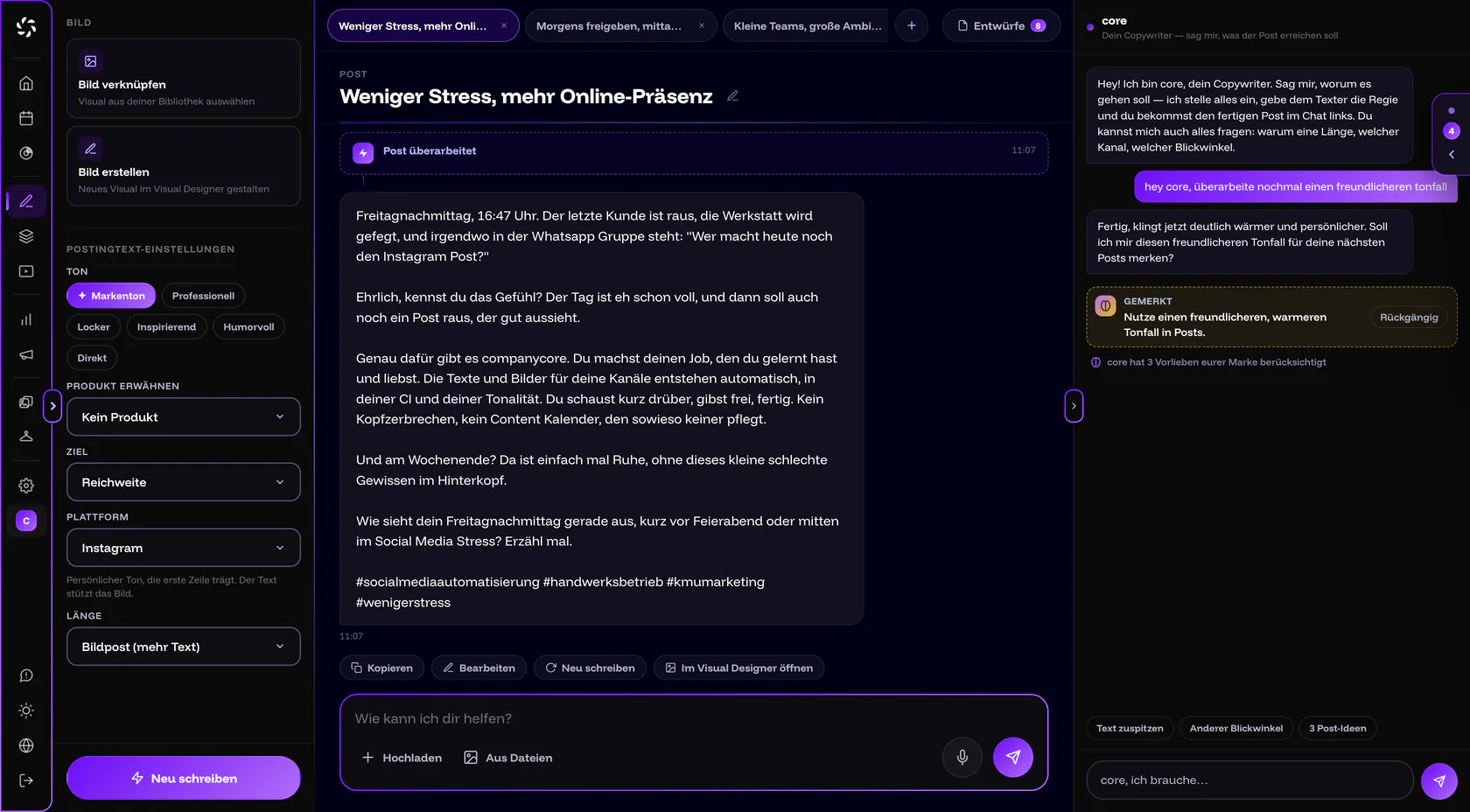
How to talk to core
Type into the “Ask core what you need…” field at the bottom of the chat, the way you would tell a colleague. Enter sends, Shift + Enter starts a new line. With the microphone button Dictate, you speak instead of typing. You only see the button if your browser supports speech recognition.
Good instructions say what the post should achieve and name the channel. Examples:
- “Post for LinkedIn about our new apprenticeship, factual, with a question at the end.”
- “Instagram, casual: today we converted an old building to underfloor heating.”
- “Make the first sentence more concrete and drop the exclamation mark at the end.”
- “And one more post about next week’s lunch special.”
- “Schedule that for Thursday at 9 a.m.”
The fourth example opens a second tab with a new draft. The fifth hands the date to the calendar.
Quick actions: the chips under the chat
The chips under the input field change with the state of your draft.
| When | Chip | What core does |
|---|---|---|
| No text yet | 3 post ideas | Suggests topics you can click. |
| No text yet | Post about… | Fills the input field with “Write a post about ”, and you add the topic. |
| No text yet | Which channel? | Helps you choose the channel. |
| Text exists | Proofread | Reads the text critically, like a strict editor: hook, opening, typical AI patterns, form of address. Fixes come as buttons you can click. |
| Text exists | Tighten the copy | Sharpens the message. |
| Text exists | Different angle | Offers other approaches to the same topic. |
| Text exists | Shorter | Shortens the text. |
Photos and PDFs as a starting point
If you have a price list, an offer as a PDF or a photo of the menu board, you don’t have to retype anything. Attach the file to your message.
- Attaching: The paperclip Upload takes images and PDFs, From files only images from your Files (on Home Photo Library). You can also drag files onto the core panel or paste them with Ctrl/⌘ + V.
- Limits: Up to 4 attachments per message, 25 MB per file at most. An attachment applies to the next message.
- Images: core describes what is on them. If there is text in the image, for example in a screenshot, it copies the text word for word. That keeps prices, times and names correct.
- PDFs: core reads out the text. For long PDFs, it evaluates only the beginning (about 12,000 characters). Better to send the relevant pages.
- Storage: Attachments in the chat do not end up in Files.
PDF not being read?
A scanned PDF consists only of images. In that case, the app shows „Kein verwertbarer Text im PDF (evtl. gescannt)“ (in German; it means: no usable text in the PDF, possibly scanned). Take a photo or a screenshot of the pages instead and attach the images.
What can core do, and what can’t it?
| Capability | What it means for you |
|---|---|
| Changing settings | Platform, length or format, goal, tone, product and environment. “Make the tone more direct” is enough. |
| Having the text written | core sets everything up and has the post written. It lands in the middle, where you change every word yourself. |
| Revising the text | The substance stays, and only what you asked for changes. |
| Changing individual passages | Swap a word, delete a sentence, add a hashtag or a line. core changes exactly that, without rewriting the rest. Up to 3 changes per message. |
| Linking an image as the post image | An attached image becomes the image of the post. core can unlink it again, too. |
| Offering choices to click | Ideas, angles or fixes appear as buttons instead of a list. |
| Remembering something | Lasting wishes go into core memory. |
| Researching the web | For current figures, deadlines and dates, with sources. |
| Scheduling | Opens the calendar with a new publication. This works only with a text and a connected channel. |
| Switching to the Visual Designer | Images are made there. core offers the switch. |
| Renaming a draft, opening a new draft | “And one more post about …” opens a second tab. |
Not possible: creating images. The Visual Designer does that, see Generate images with core. core offers TikTok only if it is enabled for your account.
Under its replies, core notes what it did, for example with Settings changed, Text edited directly, Post image linked, Remembered or Scheduling. That way you see at a glance what changed.
How does core remember my wishes?
Remembering on request
Write “remember: no em dashes”, and core stores the wish in core memory. The Noted chip appears under the reply, with an Undo button. If core isn’t sure whether something should apply permanently, it asks “Should I remember this?”. You answer with Yes, remember or No.
Sometimes a reply is followed by “core applied 3 of your brand’s preferences”. You see, change and delete everything core has remembered under Backstage › core memory. You can change things there with the permission Edit brand & CI (Settings › Permissions).
Web research
For current figures, trends and dates, core searches the web. Its reply then carries a “Sources:” note with links. It remembers found facts only if you say “Yes”.
Every web search counts toward the Web searches (core) quota. When it is used up, core stops researching, but the chat stays usable. As the owner, you see the status under Settings › Usage; background is in Usage and quotas. If you don’t want research, switch off “core may research the web” in core memory.
When something goes wrong
| Message | What you can do |
|---|---|
| “core is taking longer – researching or planning several steps …” | Wait a moment. The message appears after about 15 seconds and is not an error. |
| “core took too long – please send the message again.” | Send the message again. |
| “Sending failed, please try again.” | Send it again. Your text and attachments are back afterwards. |
| “This request was declined for safety reasons.” | Change the wording. |
| “Up to 4 images per message.” | Spread the images across several messages. |
| “Microphone not allowed — enable it via the lock icon in the browser’s address bar.” | Allow the microphone in your browser. If the microphone button is missing entirely, your browser doesn’t offer speech recognition. |
Frequently asked questions
Which language does core write in?
You set the language of your posts under Backstage › Text Settings at Post language. German is the default.
Can core schedule for me?
Yes, if the draft has a text and a channel is connected. If you name a date, core hands it to the calendar; otherwise the calendar suggests “tomorrow 10:00”. The publication is only created once you save there.
Do messages to core count toward the quota?
Yes. Texts and messages in the Post Generator count toward the AI text runs quota. Current values and what applies during the trial are in Usage and quotas.
Can I use core on my phone?
Yes. On a phone, you switch between Text, core and Settings in the Post Generator. A red dot on the core button shows that core has replied.
Was this article helpful?