

No post ideas or topic suggestions? Here’s what to do
Topic suggestions come from your brand analysis and your company content. If both are missing, the list stays empty. You upload company content in Backstage, not in the settings.
Where do the topic suggestions come from?
Topic suggestions have two sources. You can tell them apart by the subline of each idea:
- “From your content”: Topics from your brand analysis and from uploaded company content (PDF or text). They’re created after the CI analysis, after you upload company content or when you trigger new topics.
- “Trending topic”: current topics that companycore refreshes regularly as long as you use companycore.
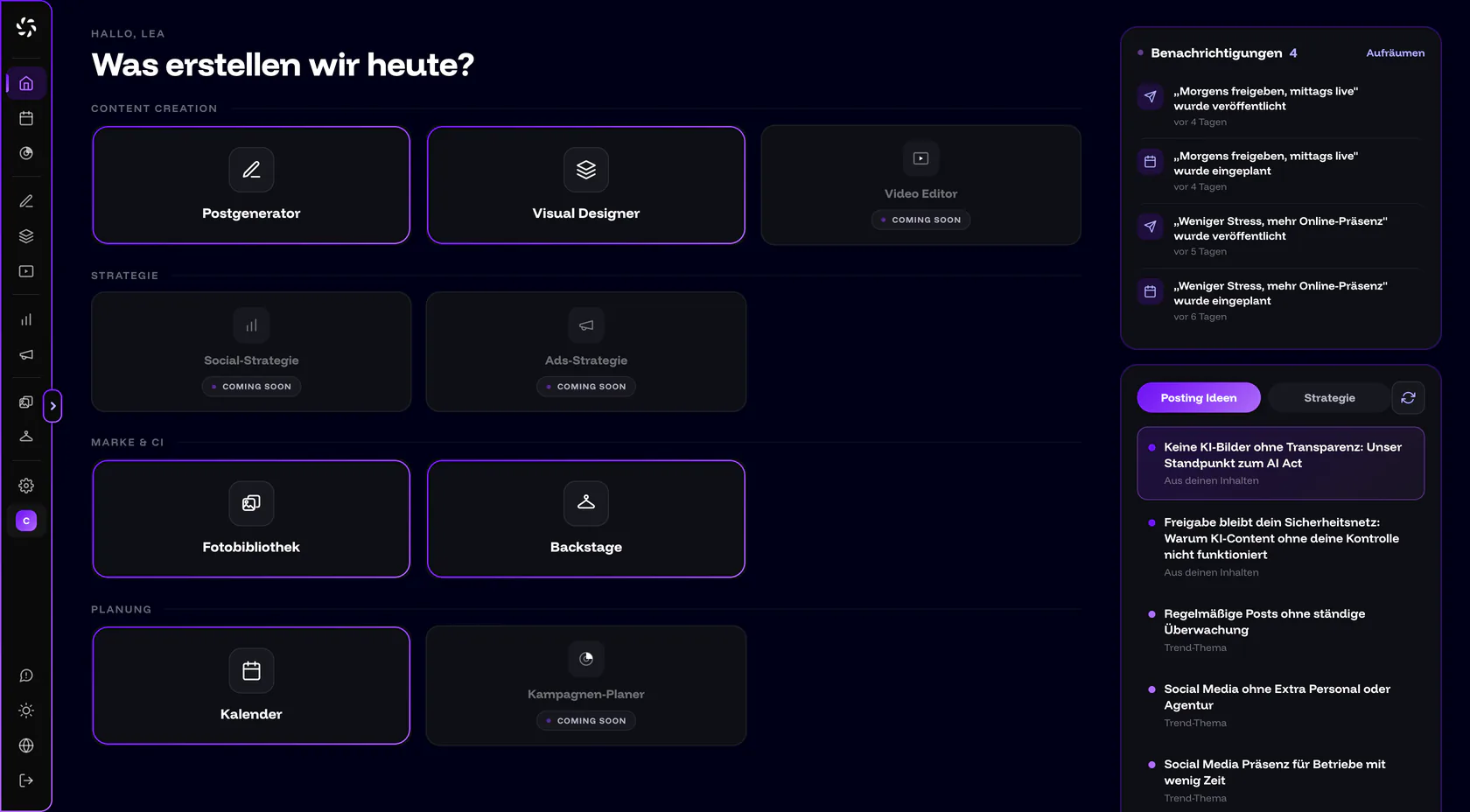
If the brand analysis and company content are both missing, the list stays empty. Home then says “No topics yet. Upload company content in settings.”, and the Post Generator says “Your topic suggestions are being created. Upload company content in settings to speed things up.”
Where do you really upload company content?
Both hints mention the settings. That’s an old route that the app still shows.
Backstage is the right place
You find company content under Backstage › CI Overview in the Company content section. Under Settings › Company details, there are only your invoice details.
- Open Backstage › CI Overview. Look for the Company content section (badge “Recommended”).
- Upload a PDF or paste text. Drag a PDF into the field “Upload PDF via click or drag & drop” (up to 20 MB). Or paste some text, for example your About page, your services or a whitepaper, and click Save text. The text needs at least 30 characters. No PDF at hand? Write in the text field who you are, what you offer and for whom. You can also dictate it with the microphone button, as long as your browser offers speech recognition.
- Wait for the message. It says “Company content saved. {count} topic suggestions created.”
- Check the topics. They appear as post ideas on Home and in the Post Generator.
Company content also feeds into the CI analysis and serves as a factual basis when writing. The more clearly it says who you are and what you offer, the better the topics fit. More about the analysis is in CI Overview.
| Message | What you do |
|---|---|
| “Please upload a PDF file.” | Choose a file in PDF format. The field doesn’t accept other formats, so use the text field instead. |
| “PDF too large (max 20 MB).” | Shrink the PDF or paste the most important text directly. |
| “Please paste at least 30 characters.” | Write more than one sentence: who you are, what you offer, for whom. |
| “Upload failed. Please try again.” | Upload the file again. |
| “Company content saved. Topic suggestions could not be created right now, so please regenerate later.” | The content is saved. Generate the topics again later, see below. |
How do I generate new topics?
| Where | Button | What happens |
|---|---|---|
| Home, Post ideas card | New suggestions (circular arrow) | Only reshuffles the existing topics. No new topics are created. |
| Post Generator, topic stack | Other topics | Reshuffles the stack. |
| Post Generator, empty list | Generate new topics | Creates new topics. If something is still missing, “Could not generate topics.” appears. Try again later then. |
| Backstage › CI Overview, Company content | Regenerate topic suggestions | Creates fresh suggestions from your brand and your company content and replaces the current ones. The app asks first: “Generate new topic suggestions? The current ones will be replaced.” |
Once you use a topic, it’s gone. companycore delivers a new one right away. companycore doesn’t suggest topics you’ve already covered again.
How do I get ideas right away?
In the Post Generator, core helps without a detour. With an empty draft, the start buttons 3 ideas from core and From a photo or document are there. In core’s chat, there are the shortcuts 3 post ideas and Post about…. The second one fills the input field with “Write a post about ”, and you add the topic. How to use the answers is in core as your copywriter.
A collection of post ideas for businesses, sorted by goal, is in Content ideas.
Still stuck?
Click Feedback at the bottom of the sidebar, choose Broken and write what you see. You can also email us at jan@companycore.ai.
Frequently asked questions
What happens when I click a topic?
The app opens the Post Generator with a new draft and immediately sends “Write me a post about: {topic}” to core. The first text appears without another click. That counts as an AI text run and goes toward the monthly quota.
Can I adjust a topic before it’s written?
Yes. On the topic card in the Post Generator, Adjust copies the topic into core’s input field, where you add to it yourself. Use → has core write right away.
Can I add my own topics to the list?
Not as a list. But you can give core a topic at any time, for example through the shortcut Post about…. You bring in your own facts and texts through Company content.
Do new topics use up my quota?
Topic suggestions are replenished from the Trend research quota. You can see the status under Settings › Usage, and only the owner sees the tab.
Was this article helpful?