

AI labeling in companycore: label and settings
If an image can pass as a real photograph, the Visual Designer puts a visible “AI-GENERATED” or “AI-MODIFIED” label into the image.
Not legal advice
This page describes what the software does (as of October 2026). It does not say whether a particular post meets every legal requirement, and it is not a substitute for legal advice. What the labeling obligation for AI content looks like is explained in AI labeling requirement.
Which two labels are there?
| Image type | Visible label | Example |
|---|---|---|
| Newly created image that looks like a photo | “AI-GENERATED” | core creates a photo of your shop or an image with your model. |
| Edited real photo | “AI-MODIFIED” | You upload a phone photo, and core recolors it, retouches it or removes something. A cut-out from your photo counts, too. |
| Purely designed graphic made of type, shapes and colors | no label | A quote graphic with type and a color field. The AI disclosure section doesn’t appear at all. |
The visible label is the reliable notice: it is part of the image and stays visible when you save to Files, when you download and when you publish.
When does the label appear?
The Visual Designer checks whether an image can look like a real photograph. That is the case with:
- the Photo posting type
- images with a person or product
- a photo as the base of the image
- an AI layer on a real photo
With purely designed graphics, the AI disclosure section is missing from the left panel. If you delete an image’s AI layer, the label goes away. A sentence in the panel explains which label applies, for example: “This image is an edited real photo – the label reads ‘AI-MODIFIED’.” The sentence names the matching label right away.
How do I adjust the label?
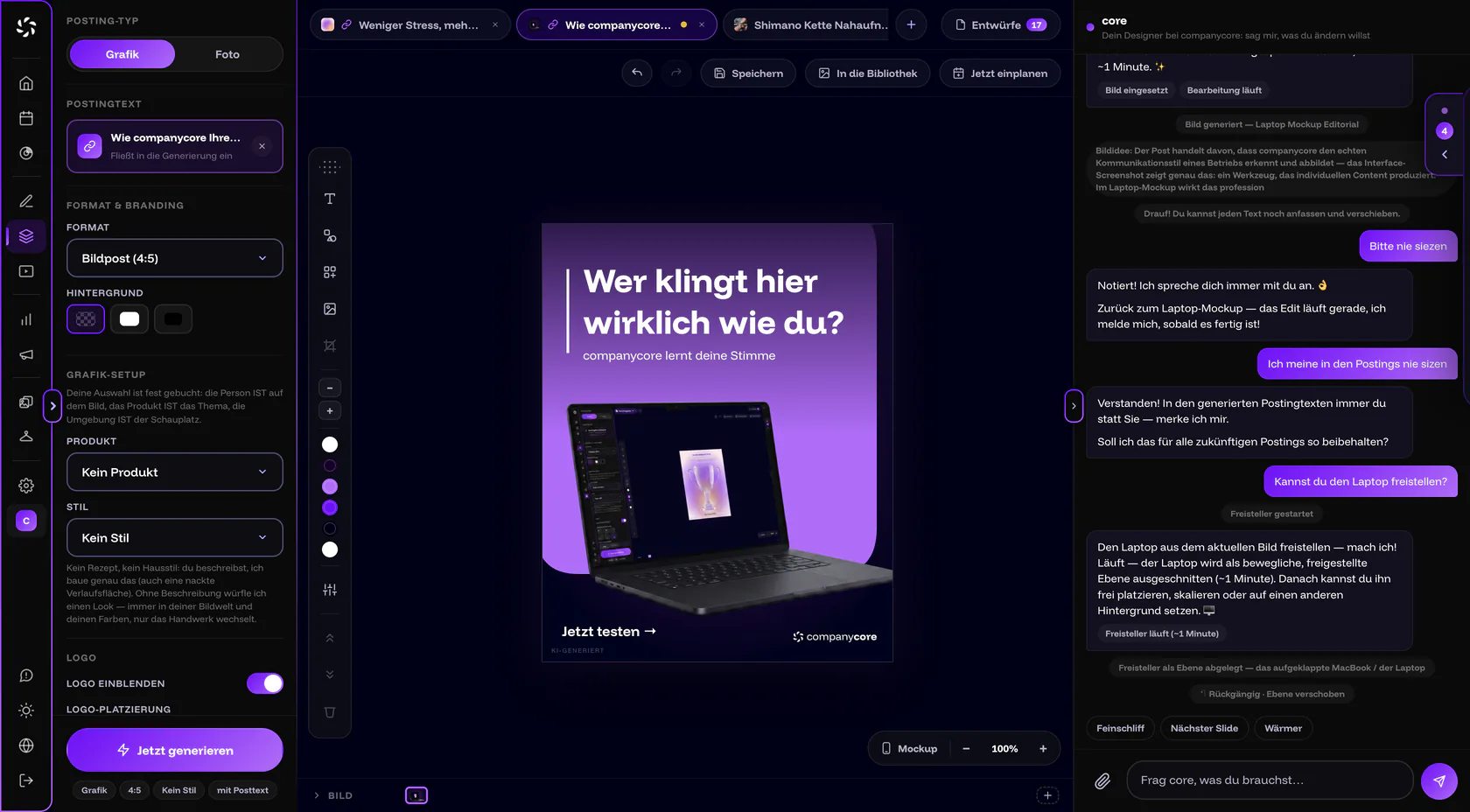
- Open the image in the Visual Designer. The AI disclosure panel appears on the left as soon as the image can look real.
- Choose Position. You have six anchors, as with the logo, from top left to bottom right. You can also drag the label freely on the image; it always stays inside the image. If you choose a position again afterward, it snaps back in place.
- Choose Orientation. Horizontal or Vertical (edge). The second option is available only at suitable anchors.
- Set Opacity. 25 to 85% is possible. The default is 25% and the bottom-left position.
The Label switch is on by default. The app sums up the rule like this: “Position and subtlety are yours. Hiding is not.”
Can I switch the label off?
Yes, but only deliberately. The Label switch opens the dialog “Switch off the AI label?”. You have to tick “I understand this and accept full liability.” and click Switch off the label.
Switching off means: the responsibility is yours
Afterward, the app warns: “Label switched off. You carry the legal responsibility for publishing this image; companycore cannot guarantee compliance.”
- The consent is stored per brand.
- core can change the label’s position but never remove it. Even a request in the chat doesn’t switch it off.
- Without the label, the visible notice in the image is missing.
And in the calendar?
Images that you link in the Post Generator or schedule from the Visual Designer keep their AI marking all the way into the calendar. When you schedule, two channels suggest their own fields:
- TikTok: Created or edited with AI is prefilled if a medium is AI-generated.
- YouTube: Altered or synthetic content is prefilled automatically.
TikTok is being enabled step by step. How to handle AI images on Instagram, Facebook and LinkedIn is covered in the guide AI labeling requirement. The fields when scheduling are explained in Schedule a post. This page covers images only. How to classify texts is also covered in the guide.
Frequently asked questions
Is every AI image labeled?
No. The Visual Designer sets the label if an image can look like a real photograph. Purely designed graphics get none.
Why is the label so small in the image?
The default is bottom left at 25% opacity. You set position, orientation and opacity (25 to 85%) yourself. Hiding it is possible only through the liability dialog.
Does the label stay when I download?
Yes. It is part of the finished image that To library stores. A download from Files delivers that image.
Is my post with a label legally fine?
We don’t assess that here. The label is a software feature, not an assurance. For classification and sources, see AI labeling requirement.
Was this article helpful?