

Welcome to companycore: how the app works
companycore creates posts in your brand look. You schedule them, and at the scheduled time companycore publishes them automatically to your channels. In a team, an admin or the owner approves editors’ posts first. This course takes you from a new account to your first published post in nine steps.
Time needed: about 5 minutes. Plan on 60 to 75 minutes for the whole course. You don’t have to do it in one go.
How does companycore work?
You set up your brand once. After that, companycore writes the copy, designs the images in your look and publishes the posts at the scheduled time. The route there has six stages:
- Set up your brand. In Backstage, you add your website, logo and material. The CI analysis turns them into colors, fonts, tone and image style.
- Write the copy. The Post Generator writes the post copy in your tone. With core, the AI assistant, you control goal, channel and length.
- Design the image. The Visual Designer builds the image in your brand look. Alternatively, you use an image from Files.
- Schedule. Schedule opens the Calendar. There you choose channels, format and date, then click Schedule publication.
- Approve (in a team). If you work with colleagues, an admin or the owner approves editors’ posts. This is available from the Pro plan.
- Publish. At the scheduled time, companycore posts automatically to your connected channels.
Nothing goes out without your say-so
A post is only published once you’ve scheduled it in the Calendar with Schedule publication. In a team, an approval step is added if needed.
How is the app laid out?
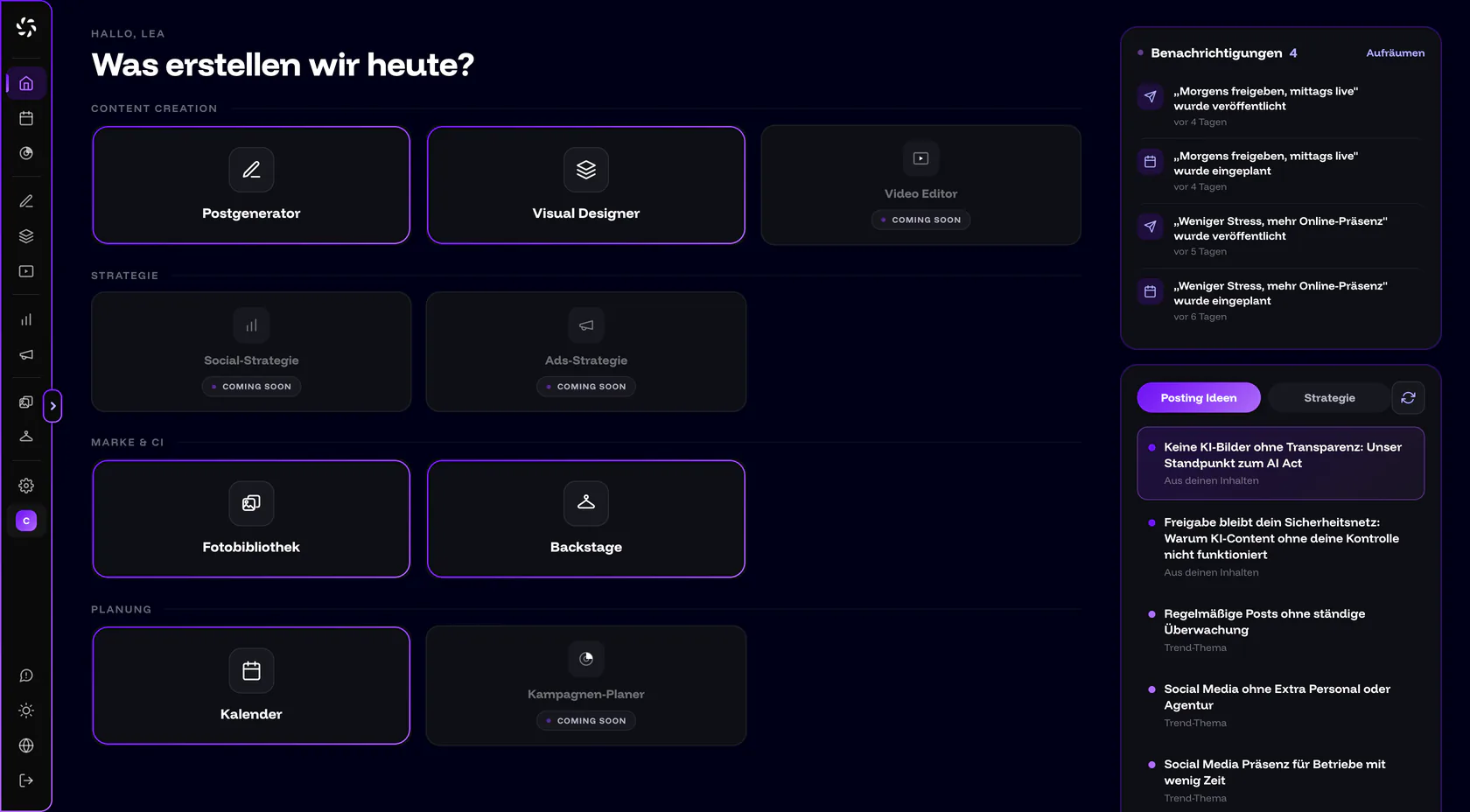
The sidebar contains these areas. The four Soon entries sit between the others in the sidebar and are summarized in the last row here:
| Entry | What it’s for |
|---|---|
| Home | Start page “What are we creating today?” with tool tiles, Notifications and Post ideas. |
| Calendar | Plan, move and approve publications. |
| Post Generator | Write and edit post copy, with core as your copywriter. |
| Visual Designer | Design images and carousels in your brand look, with core as your designer. |
| Files | Uploads, finished designs and posted content in folders. On Home, the tile is called “Photo Library”. |
| Backstage | This is where you maintain your brand: Company, CI Overview, Text Settings, core memory, Models, Wardrobe, Products, Environments and Connections. |
| Settings | Account, Security & login, Notifications and Company details. From Pro, Team, Brands and Permissions are added. Only the owner sees Billing, Usage and Permissions. |
| Campaign Planner, Video Editor, Social Strategy, Ads Strategy | Not available yet. In the sidebar they carry the badge “Soon”, and clicking one opens a “coming soon” page. |
At the bottom of the sidebar you’ll find Privacy Policy, Feedback, the Light / Dark switch, the language switcher and Log out. The language switcher always shows the other language, for example “EN” while the app is in German. During the trial, a line like “Trial · 2 days left” also appears there. From the Pro plan, the brand switcher sits below Settings.
Which channels does companycore publish to?
To Instagram, Facebook (Pages), LinkedIn (profile or company page), TikTok and YouTube Shorts. companycore uses the platforms’ official APIs for this. TikTok is being rolled out step by step. Step 6 shows how to connect your first channel.
Which terms do you need?
- Organization
- The account that pays. Plan, invoices, team and quotas belong to the organization. Whoever signs up creates it and becomes the owner.
- Brand
- A separate unit with its own content, connections and settings. Starter includes one brand; several brands come with Pro.
- Backstage
- The area where you maintain your brand. Everything there applies per brand.
- core
- companycore’s AI assistant. In the Post Generator it’s your copywriter, in the Visual Designer your designer. You tell it what you need, and it does it.
- CI analysis
- CI stands for corporate identity, your brand look. The analysis reads your website, logo, documents and reference images in one run and derives colors, fonts, tone of voice and image style from them.
- Draft
- A saved post that isn’t scheduled yet. In the Calendar, drafts only appear in the list on the left, not in the grid.
- Publication
- A post in the Calendar with channels, formats, media, copy and date. One publication can go out on one to five channels.
- Approval
- The step where an admin, the owner or (on the Max plan) your client confirms a scheduled post before it goes out. Approvals are available from the Pro plan.
- Quota
- The amount of AI text runs, image generations, CI analyses (shown as Brand analyses in the app) and other services your plan includes per month. Settings › Usage shows your consumption, for the owner only. The counters reset on the 1st of every month.
- Owner
- The role of the person who signed up. The owner manages the plan, billing, company details and permissions. There can be several owners.
What should you prepare?
Have these things ready before you start the trial:
- The address of your website
- Your logo as PNG or SVG
- Your colors as hex codes and your fonts, if you know them, or your CI manual as a PDF
- 4 to 6 sample images or posts whose look you like (up to 10 are possible)
- A text or PDF about your offering (PDF up to 20 MB)
- Access to your social accounts (for Instagram, a professional account)
- A payment method for the trial
Material first, trial second
During the 3 trial days you get exactly one CI analysis. So start the trial only once the items on the list are ready, so the analysis runs with all your sources.
How is the course structured?
You’re on Step 1. The other eight steps build on each other and take about 55 to 70 minutes together:
Result
You know the path from account to published post, the main areas of the app and the terms used in the course. Your material is ready. Next, you create your account.
Was this article helpful?