

Generate images with core: photo, graphic and styles
core builds images in your visual world: as a graphic with type and shapes, or as a photorealistic image with your models, products and places. You steer it through the panel or simply by chat.
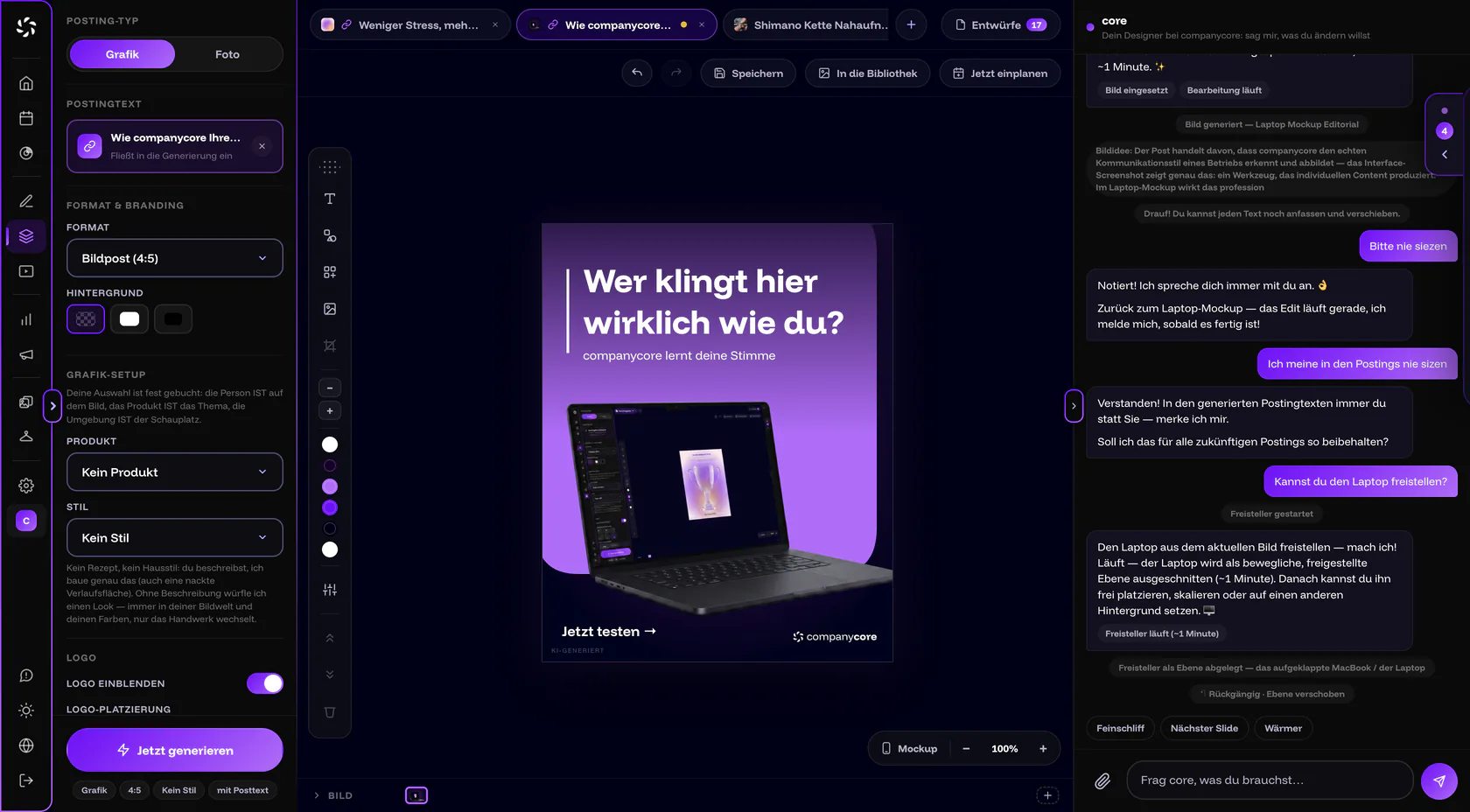
Graphic or photo: what is the difference?
| Posting type | What is created | People |
|---|---|---|
| Graphic | “Graphic post in CI look: type, shapes, colors” | none |
| Photo | “Photorealistic, with your Backstage models” | only from your model or your own photo |
People appear only in the Photo type. companycore doesn’t invent recognizable people: if you don’t choose a person, a photo shows at most anonymous figures, for example from behind, blurred or as a silhouette.
Photo setup: person, outfit, product, environment
In the Photo setup, you define what should appear in the image: Person, Outfit (only once a person is chosen), Product and Environment. The Graphic setup has only Product. The fields appear only if you have added something in Backstage, see Models and Products and environments.
Your selection is binding
The app puts it like this: “Your selection is a firm booking: the person IS in the image, the product IS the subject, the location IS the setting.” So what you choose is a requirement, not a suggestion.
Which image styles are there?
The Style field has two groups. Your brand contains custom image styles from your CI analysis; you maintain them under Backstage › CI Overview and can switch individual ones off. Catalogue contains the fixed styles. Reference copy appears only if you have stored analyzed reference images of that kind.
| Type | Styles in “Catalogue” |
|---|---|
| Photo | Cinematic, Dark & Premium, Black & White, Up close (Macro), Warm daylight, Clean studio, Real & Candid, From above (Drone), Flatlay, Urban & Raw |
| Graphic | 3D Render, Gradient, Glass, Minimal, Shapes & Color, Flat + 3D, Sketch, Collage, Elegant, Light & Shadow, Line Art, Pop Art |
The default No style means, according to the app: “No recipe, no house style: you describe it, I build exactly that.” Without a description, core rolls a look but stays within your visual world and your colors.
One image first, then the series
Test a style on a single image before you start a series. If you like the result, lock in the look with Keep look (see below).
How do I tell core what to build?
In the chat on the right, the placeholder reads “Ask core what you need…”. Describe what you have in mind, or tap a quick action. Which quick actions you see depends on the state of the composition:
- No image: Suggest an idea, Match my post (if a post text is linked) or Which style fits? and Surprise me.
- Image without text on it: Text on image, Warmer and Match my brand.
- Image with text on it: Polish it, Next slide and Warmer.
Attachments work here, too: up to 5 images or PDFs per message, a PDF at most 8 MB, all attachments together at most 35 MB. You drag them into the chat, use the paperclip or paste them from the clipboard.
What core plans to do, it notes as a brief under Generate now. That way you see what will happen before it starts, and you can step in.
Good image instructions
Name a subject, a mood and one change per message. Instead of “make it prettier”, say: “Lighter background, logo top right, change nothing else.” core changes exactly what you name and leaves the rest untouched.
Improve your own photos
You don’t have to start from zero. Upload a phone photo and tell core what it should become. It can recolor, retouch, remove something or stage a phone photo as a product photo. The real content is preserved.
With a cut-out, core cuts a person or object out of your photo, pixel-true and not repainted. You can then place the cut-out freely, scale it or put it on a different background. This takes about a minute (“Cut-out running (~1 minute)”). Edited real photos carry the label “AI-MODIFIED”, more in AI label in companycore.
Text and layout suggestions
Instead of setting text yourself, you can ask core for suggestions, for example with Text on image. It shows finished variants as cards. Hover over one to see the variant live on the image, and a click applies it. Different ideas fetches new ones. If the image already carries its message, core says so honestly: “The image already carries its message — I would not add anything.” Everything stays editable as a layer.
Series in the same look: Keep look
The Keep look switch above Generate now locks in the medium, colors and light of the current image. A new topic is then created in the same look. If the switch is off and the style is set to No style, every image gets its own look.
- The app shows the source of the look: template, series or your pick.
- Without an image, the switch is locked (“Add an image first — then its look can be pinned”). It also rests when you change the image style or format.
- If the app reports that the pinned look image could not be loaded, switch Keep look off and on again.
For slides in the same look, there is also Matching slide, see Carousels and templates.
Undo, stop and errors
- Undo goes back 30 steps, even across generations.
- Stop cancels a running generation. The app reports: “Generation stopped – everything is back as it was.”
- Only one generation runs per image at a time: “A generation is already running for this image, almost done.”
- “Generation failed. Please try again.” means: click Generate now once more. After a timeout, core asks by itself whether it should try again.
- “The content was rejected for safety reasons.” means: reword the brief.
What counts toward the quota?
Every image core creates or edits, and every Matching slide, counts toward the Image generations quota. Color grading and copying a slide with new texts cost nothing. An image is counted when it finishes successfully. As the owner, you see the status under Settings › Usage; the counters reset on the 1st of every month. During the trial, quotas are throttled. Numbers and background: Usage and quotas.
If the quota is empty, the app says “Your monthly allowance is used up” and shows the status. If there are very many requests in a short time, it also slows you down: “Too many requests right now – please wait a moment and try again.”
Guardrails: what core deliberately doesn’t do
- No recognizable invented faces. People come only from your model or your photo.
- No text and no logo painted into the image. Both are layers you can change.
- Your CI stays the frame. Your brand’s colors and fonts always apply.
- One change changes exactly that one thing. If you say “lighter background”, you don’t get a new image composition.
Frequently asked questions
Can core create an image with me in it?
Yes, with a model: an AI double made from a few targeted photos that you create in Backstage. In the Visual Designer, you choose it under Person with the Photo type. How that works is in Models.
Why are “Person”, “Product” or “Environment” missing in the setup?
The fields appear only if something is stored for them in Backstage. Outfit also appears only once you have chosen a person.
Can core write text on the image?
Yes, as a text layer, for example with Text on image. The text is never painted into the image. You change font, size and position yourself afterwards.
Where does the finished image end up?
To library puts it pixel-perfect into Files. With Schedule now, it also goes to the calendar. Visual Designer explains both.
Was this article helpful?