

Products and environments for real brand images
Add products and places with real photos, and the Visual Designer builds its images on them: your product as the subject, your space as the setting. The Post Generator can also mention a specific product in the text.
What do you need products and environments for?
In the Visual Designer you decide what appears in the image. The app sums it up: “Your selection is a firm booking: the person IS in the image, the product IS the subject, the location IS the setting.” So a chosen product is the subject of the image, and a chosen environment is the setting.
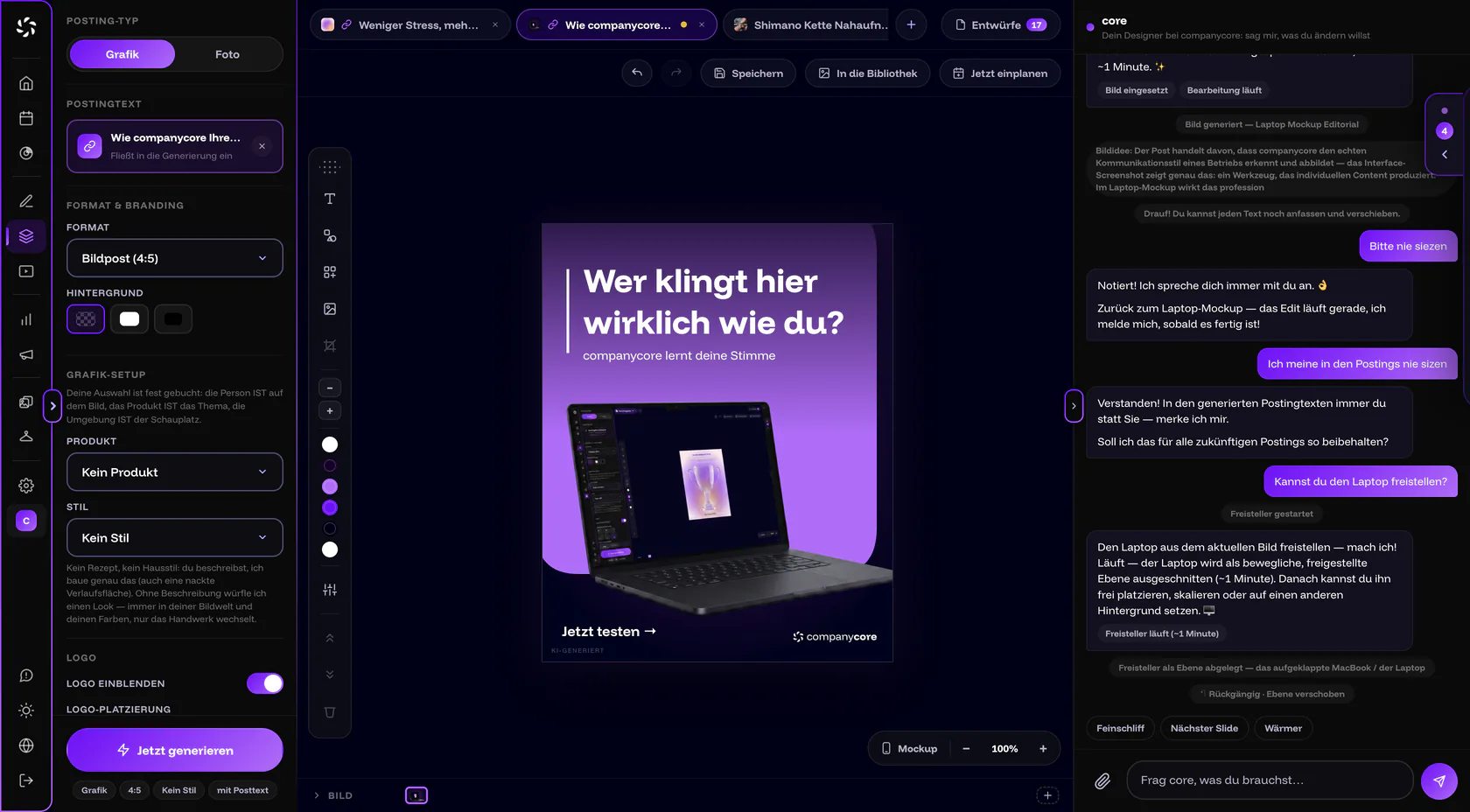
If you choose an environment for photo images, the Visual Designer builds on a real photo of that place. The camera angle stays the same, and the scene is built around it.
In the Post Generator you pick a product under Mention product. It then has to appear in the post. Your details and photos serve as the basis.
Which types suit your business?
When you create one, you choose a Type. There are 28 types for products and 17 for environments. For products, the type determines which photo slots you get; some are required, some optional. The table suggests types that exist in the app. The list is longer: look for the type closest to what you offer.
| Business | Product type | Environment type |
|---|---|---|
| Trades, for example electrical or drywall | Executed work / reference project, Hand & power tools | Workshop / production hall, Construction site |
| Hair and beauty | Cosmetics & beauty, for a service Service without a product | Retail store / sales floor or the type closest to your salon |
| Hospitality | Food & dishes | Restaurant / café / bar / kitchen |
| Commercial cleaning | Service without a product | Office / workplace |
| Retail | General product | Retail store / sales floor |
| Agency and software | Software & screens | Office / workplace |
How to add a product
- Open Products. Choose Backstage › Products and click Add product.
- Enter a name. In the Product name field, use the name your customers use. It later appears in the selection in the Post Generator and the Visual Designer.
- Choose a type. The type determines the photo slots. Some are required, some optional.
- Add photos. Upload one photo for each slot.
- Describe each photo in one sentence. Under What does this photo show? you name the angle, the condition and what’s visible. The app makes a suggestion from the photo check: “review, adjust, keep”. The AI takes the sentence into account when generating.
Three examples of good sentences:
| Business | Type | Sentence for “What does this photo show?” |
|---|---|---|
| Electrical contractor | Executed work / reference project | “New sub-distribution board in the basement, front view, labeling complete, doors closed.” |
| Restaurant | Food & dishes | “Tarte flambée with bacon, shot from above at an angle, on a wooden board, fresh from the oven.” |
| Hair salon | Cosmetics & beauty | “Conditioning shampoo, bottle from the front, label easy to read, white background.” |
How to add an environment
- Open Environments. Choose Backstage › Environments. The app describes the area as “Places & settings your visuals play in.”
- Choose a type. There are 17 types, for example Retail store / sales floor, Workshop / production hall, Restaurant / café / bar / kitchen, Construction site and Office / workplace.
- Add photos. The slots include Wide (required), Second angle and Detail. Show the place once as a whole and once from another direction.
Deleting is permanent
If you delete a product or an environment, the description and all photos disappear. The app warns: “Permanently delete … including its description and all photos? This cannot be undone.”
Which photos work?
The photo check only judges whether a photo is technically usable: yes or no. Whether it fits your offer is your call. These points help:
- Calm background
- Daylight
- The whole area or the whole object in the frame
- No customers in the frame
- No documents in the frame
What applies to photos of people is covered in Photos of employees and customers.
Where do you use products and environments?
| Where | Field | Effect |
|---|---|---|
| Visual Designer, Photo post type | Photo setup: Product and Environment, plus Person and Outfit | The product is the subject, the environment is the setting. Without a selection, the product field says No product and the environment field says No preference. |
| Visual Designer, Graphic post type | Graphic setup: Product only | The product is the subject of the graphic. |
| Post Generator, Post text settings | Mention product and Mention environment | A chosen product has to appear in the post. Without a selection, the product field says No product and the environment field says No environment. |
The fields only appear if you have added something in the Backstage.
Still AI-generated
Images built on your product or your place are AI-generated. If they look like a real photo, the Visual Designer can label them “AI-GENERATED”. More in AI labeling in companycore.
Frequently asked questions
Why don’t I see a “Product” field in the Visual Designer?
The field only appears once you have added a product in the Backstage. With the Graphic post type, the Graphic setup has only the Product field. With the Photo type, the Photo setup also offers Person, Outfit and Environment.
Can I also add a service?
Yes. Choose Service without a product as the type.
Does the Post Generator invent properties of my product?
For a chosen product, the Post Generator only gets your description and photos as a basis. Still, read the text over before you schedule. A precise sentence under What does this photo show? makes it more reliable.
Will my phone photo become a product photo?
There’s a different route for that: in the Visual Designer, core can stage a phone photo as a product photo, and the real content is preserved. More in Generate images with core.
Was this article helpful?