

Calendar: plan and track all your posts
In the Calendar, text and images become a publication. You see what is planned, move dates and fill gaps. Drafts are in the list on the left, scheduled posts in the grid.
How is the calendar laid out?
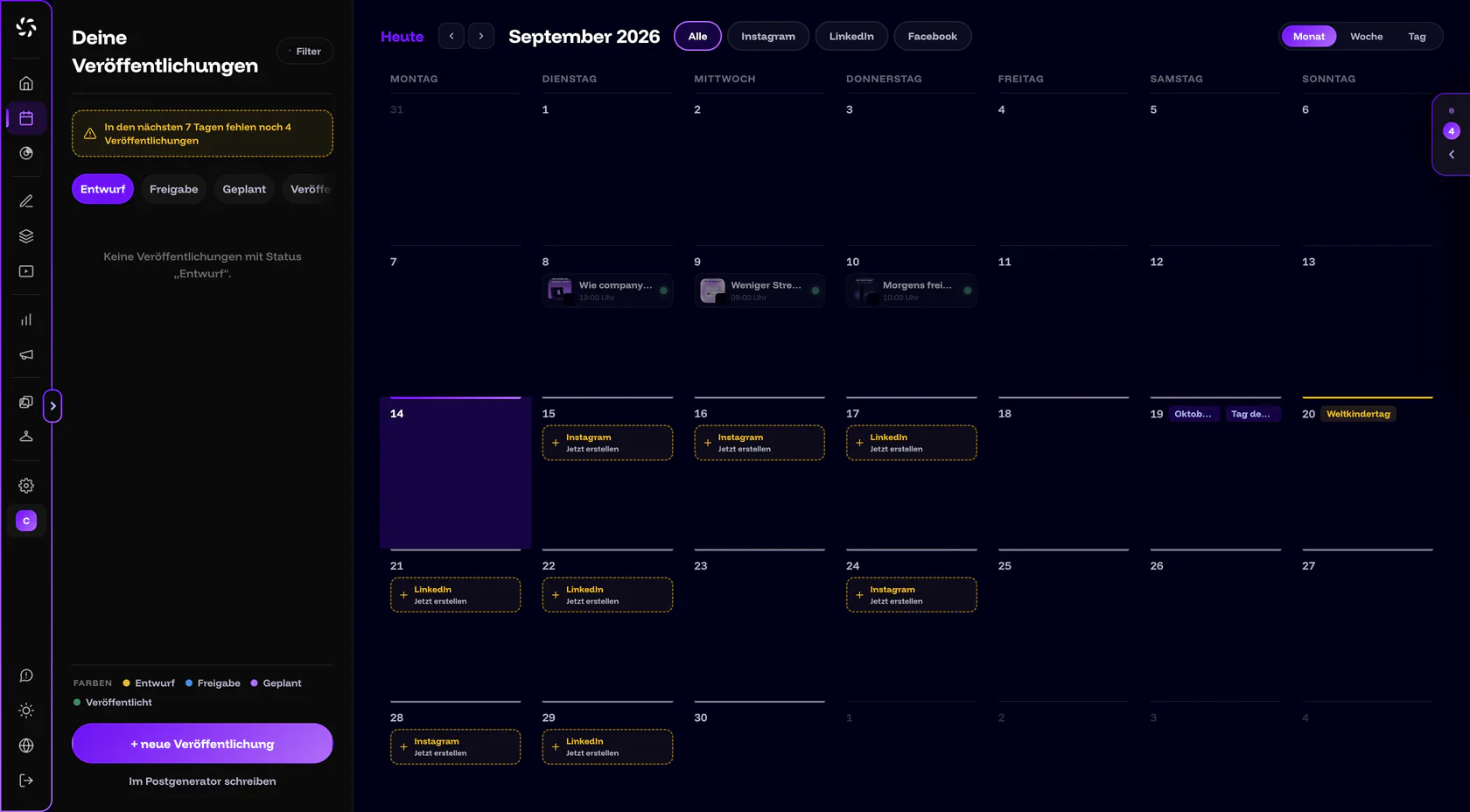
On the left is the list Your publications, on the right the grid. The list is sorted by status. The grid shows every post that is no longer a draft.
| Segment | What you find there |
|---|---|
| Draft | Saved but not scheduled. Drafts appear only here, not in the grid. This segment is preselected when you open the calendar. |
| Approval | Scheduled and waiting for approval, including the client’s approval. The segment appears on the Pro plan and above, or as long as approvals are still open. |
| Planned | Firmly scheduled. Posts with the status Publishing and Failed are in here too. A red number on the segment counts the failed ones. |
| Published | Everything that is out, including partly published posts. |
- Top of the grid: Today, arrows to the previous and next month, the platform filters All, Instagram, LinkedIn, Facebook and YouTube, and on the right Month, Week and Day. TikTok appears as a filter as soon as it is enabled or connected for your brand.
- Month: six weeks, and the week starts on Monday. Each day shows a card with preview, title, time and a status dot. If several posts fall on one day, they form a stack with the count, for example “3 posts”. A click opens the day list. Failed posts carry a red exclamation mark and sit on top of the stack.
- Week and day: a time grid from 6 a.m. to 9 p.m. with a line for “now”. Dates outside this window appear at the edge. A click on the weekday jumps to the day view.
- Colors: The legend Colours at the bottom left shows which color stands for which status. Status and notifications explains every status.
Can’t find a post?
Drafts appear only in the list on the left, never in the grid. A platform filter also hides other channels: if LinkedIn is active at the top, you won’t see any Instagram posts.
How do I create a new publication?
All routes lead to the same editor, which Schedule a post explains step by step. You need a connected channel. Without one, the message “No channel connected — scheduling is locked.” appears above the buttons, together with the link Connect a channel.
| Route | What happens |
|---|---|
| + new publication (bottom left) | The date is preset: tomorrow at 10 a.m. |
| Click an empty day in the month view | The date is that day at 10 a.m. If it is already past 10 a.m. today, the calendar uses the next half hour. |
| Click a free area in week or day view | The date is exactly that time, rounded to the half hour. |
| Right-click a day (long press on a phone), then New publication | A new post on that day. The entry is missing on past days. |
| Suggestion tile with Create now | A new post on the suggested day. |
| Schedule in the Post Generator, Schedule now in the Visual Designer | The editor opens with the text or images from that tool. Nothing is created until you save. |
| Write in the Post Generator (bottom left) | This doesn’t open a date but a new draft in the Post Generator. |
If a platform filter is active, for example LinkedIn, that channel is already switched on in the new post.
How do I move a date?
- Drag the card. In month view you drag a card from day to day, and the time stays the same. In week and day view it snaps to half hours. You can also drag cards from the list on the left into the grid.
- Pick today or a later day. You can only move a post to today or later. If the time has already passed today, the calendar sets the next half hour.
- Wait for the message. A short message confirms the new date: “Moved to …” with the date.
Special cases
- Phone and tablet: There is no dragging. Hold the card for about half a second, choose Move to …, set date and time and confirm with Move.
- Drafts: If you drag a draft into the grid, that does not schedule it. Instead, the editor opens with the new date.
- Posts in approval: They keep their approval stage, only the date moves. If an editor changes the date of an approved post, the post has to be approved again. More in Approvals.
- Can’t be moved: Published, Publishing and Failed with an unclear status. For clients and viewers, moving is blocked entirely.
A right-click on a card opens the context menu, on a phone a long press. Which entries you see depends on your role and the status.
| Entry | When it appears and what it does |
|---|---|
| Edit / View | View appears for Published, for Publishing and for roles that can only read. |
| Approve / Reject | Only for people who may confirm the current approval stage. More in Approvals. |
| Reschedule | For Failed. The date jumps to now plus about 15 minutes, rounded up to the half hour. |
| Move to … | When the post can be moved (see above). |
| Reset to draft | For Planned and Failed. The post is then back on the left under Draft. |
| Unschedule | At the approval stages. Clients see it for Planned if the owner has switched on Client may unschedule. Afterwards the post is a draft again. |
| Delete | Not for Published and Publishing. The calendar asks for confirmation first. |
| On a day: New publication, Add a date | Creates a post or a custom date. On a custom date, you get an entry to remove it. |
Public holidays, special days and custom dates
The calendar shows German public holidays as a label on the day: the nationwide ones and the regional ones of all federal states. There is no filter by state. A regional holiday therefore also appears in the calendar if it doesn’t apply where you are. On top of that come special days such as Valentine’s Day, Mother’s Day, Black Friday, Halloween and Tag des Handwerks (a German trades day).
With custom dates, you add a trade fair, an anniversary or a company vacation to the calendar so you see it while planning:
- Right-click the day. On a phone, long-press. Choose Add a date.
- Type a label. The Label field suggests: “e.g. trade fair, anniversary …”
- Choose a repeat. With Repeat every year, the date shows up again every year.
- Click Add. The message “Date added” confirms it.
To remove a date, right-click it. You can create up to 200 custom dates, including dates in the past.
How do the suggestions for empty days work?
The calendar suggests days when you could post. A suggestion appears as a dashed tile with the name of a channel or occasion and the button Create now. A click opens a new post on that day. This is how the calendar works it out:
- By default it suggests enough empty days to reach 3 posts per week. Nothing is scheduled by itself.
- It picks Monday to Friday and prefers Tuesday, Thursday, Monday, Wednesday, Friday, in that order. The weekend only comes in from 5 posts per week.
- Public holidays stay free. Special days are preferred.
- It looks up to 42 days ahead. The channels take turns, based on your connected channels.
- A yellow box above the list warns: “… publications still missing in the next 7 days”, with the number. A click jumps to the week of the next suggestion.
Days, not times
The calendar suggests days, not times and not topics. You set the time in the editor. The tooltip “Suggestion from your strategy” refers to the weekly rhythm described here. There is no strategy page yet. For what studies say about timing, see Best time to post.
Which time zone applies, and what about past days?
All dates use German time (Europe/Berlin). If your browser is set to a different time zone, the editor shows “Times shown in German time”. Past days are view-only. A click on one shows: “Past days are view-only. To schedule something, pick a day from today onwards.”
Frequently asked questions
Why can’t I see my post in the calendar?
Drafts only appear in the list on the left under Draft. If it isn’t a draft, check the platform filter: it hides other channels.
Why is the “Approval” segment missing?
The segment appears on the Pro plan and above, or as long as approvals are still open. The Starter plan has no approval stage: scheduling a post is the approval. More in Approvals.
Can I move posts on my phone?
Yes, but without dragging. Hold the card and choose Move to ….
Can I filter public holidays by state?
No. The calendar shows the nationwide holidays and the regional holidays of all federal states.
Does the calendar cover all my brands?
No. The calendar, drafts and posts belong to the active brand. With several brands, you switch with the brand switcher in the sidebar. More in Team, roles and brands.
Can I export the calendar, for example as an ICS file?
No. There is no export.
Was this article helpful?